Appnext

Rabu, 28 Februari 2018

Android Auto in 2018

It's almost perfect. Almost.

I'm a huge fan of Android Auto. Actually, I'm a huge fan of anything that gets folks' phones out of their fat fingers while flying down the highway. Or at stoplights. Anywhere, really. And the good news is we have more options than ever. A car mount and Bluetooth are OK. Apple's CarPlay isn't too awful.

But Android Auto is what all infotainment systems should strive to be. It's easy to use. It looks nice.

And most important is that it doesn't just make it impractical to use your phone while driving — it mostly makes it so you don't even want to touch the thing.

But all is not perfect in Google's implementation of a car mode. So as we enter into a new year of hardware and services — knowing full well that things on the horizon are liable to change our views as they come into focus — let's take a look at what's working, and what needs improvement.

Android Auto is the safest — and easiest — way to use your phone in your car.

Android Auto: The basics

Your car doesn't "run" Android Auto. It's not natively baked into your vehicle. (Yet.) No, whether you've got the factory infotainment system, or an aftermarket head unit, you'll still have to contend with the crappy built-in user interface. It's just a fact of life.

Android Auto is separate and runs alongside that factory experience. It's powered by your Android phone. The apps live on your Android phone. And that's a good thing. Because any car that can use Android Auto can use your Android Auto. Your apps. Your music. Your experience.

Google Maps on Android Auto.

The biggest change for Android Auto over the past year or so actually came at the end of 2016. Until then, Android Auto was an app on your phone that projected itself onto a car's infotainment screen, and only that screen. Your phone would go dark, effectively (but not completely) locking you out while it did the heavy lifting and projected a driver-friendly UI into the car.

Now? Android Auto starts as an excellent phone-based car mode app. It doesn't matter how old your car is, or whether it has a radio at all, never mind one with a 7-inch display. No expensive aftermarket installations, and no having to deal with potentially clunky wiring. (More on that in a second.)

But if you do have a compatible head unit, you get a bigger, better experience. Bigger album art. Larger maps. Large touch targets. And something that's more built-in, which to me makes it feel like something you use and don't necessarily play with. You currently have to plug your phone in for it to work, though that'll start to change this year as wireless connections finally see the light of day.

But by and large, whether you're using the phone version of Android Auto or the in-dash variety, they're mostly the same experience.

And of course you can talk to your car with Android Auto. If you've got a "talk" button on your steering wheel, by all means use that. If you don't, you can hit the on-screen microphone button. Or you can just have your phone set to respond to "OK, Google," and that'll take care of things automatically.

What cars have Android Auto capability built in? A lot, with more being added all the time. (Google says more than 400, though.) And aftermarket options from Pioneer, Kenwood, Sony and more make the full Android Auto experience available to pretty much anyone with a doube-DIN sized hole in their dash.

There are some holdouts, though. BMW? Forget it. Mercedes? Only if you're lucky. And Mazda is still struggling to add Android Auto for some reason.

Picking an app to use on Android Auto is as simple as pointing a finger.

Android Auto: The apps

Every app that works on the built-in version of Android Auto works on the phone version of Android Auto. That's because there aren't really any special apps for Android Auto. Instead, think of AA as a framework for existing apps that reworks features into a car-friendly interface. Google Maps is Google Maps — it also happens to work on Android Auto. Pocket Casts is the same great podcatcher that also happens to work on Android Auto. Waze is Waze.

You can put Android Auto apps (erm, apps that also work on Android Auto) into three categories: Entertainment, messaging, and maps. How many are there? I don't know. Google's promotional page is incomplete. But it's a fairly deep repository.

Not every app works with Android Auto — and apps that do work with Android Auto have to follow a pretty specific set of guidelines, for ease of use as well as safety reasons. You're not going to be watching video while you drive. (And you really shouldn't anyway.)

And to complicate matters a little further, the Uber-popular Waze — which is and always has been a mapping app on your phone — works on Android Auto on the full-screen experience, but not on the phone version of Android Auto. Go figure.

The Android Auto Home Screen.

The Android Auto User Interface

You can think of Android Auto as a system within a system. It's got a background, and a sort of home screen. But you'll only be using one application at a time, with notifications at a bare minimum, and only from messaging apps that have been extended to Android Auto. The whole point, of course, is to have a few distractions as possible while still actually being able to use the thing.

The main options are all docked at the bottom of the screen. Navigation. Phone calls. Your home screen. Audio. This is where you'll switch between apps, and open up the app picker if you've got more than one in a given category. (And you probably do.)

The home screen is customized with information from your Google account. The weather shows up here. Upcoming events will appear. Recent calls (incoming and outgoing) and messages will be seen. Any current media that's been playing is here. And it's all done in an easy-to-read, easier-to-deal-with way.

Entertainment apps on Android Auto

Google Play Music on Android Auto.

While "entertainment" isn't quite the right word for this subcategory of Android Auto apps (technically it's "audio"), it's close enough. Music apps are in there. Google Play Music is usually included by default. And as you'd expect, it works great on Android Auto. But it's far from the only choice. Spotify is supported. Amazon Music is in there. So, too, are Pandora and Deezer. As are others.

Podcast apps — podcatchers — fall into this category as well. Google's own is built in to Google Play Music, of course. But other apps like Pocket Casts and Dogcatcher and BeyondPod have included Android Auto.

Android Auto doesn't really care what you're listening to. It's just concerned about how it looks. To that end every audio app looks and works pretty much the same way, with the same styled buttons and menus. That's by design, and it generally works pretty well.

Messaging apps on Android Auto

Skype is available for Android Auto. If that doesn't give you a sense of dread, I don't know what will. But for as distracting as messaging apps tend to be on a phone or computer, Android Auto has done well to keep what otherwise is a black hole of notifications — you're never getting out of this one — and turning it into something safe and usable.

It's simple, really. A messaging app on Android Auto routes the app to your screen in the form of a notification — and not the message itself. You can choose to listen to it, or not. And you can choose to reply with your voice, or not. That's it. It reads the message aloud (which can be fun depending on the message, and whether anyone else is in the car with you), and you can reply.

This goes for things like SMS text messages, Skype, WhatsApp — anything that supports Android Auto. Your experience will vary depending on the frequency of messages — being bombarded is especially annoying here — and by how many emoji your kids might use in a single stretch. You haven't lived until Android Auto gives you a readout of gold star gold star unicorn watermelon rainbow lighting bolt smiley face Canadian flag clapping missing tooth poop poop poop poop poop poop poop poop fireworks fireworks heart heart poop.

And that would be a short one.

You also can initiate messages using your just your voice. Again, the whole idea is to keep your eyes on the road.

Map apps on Android Auto

You can have any navigation app on Android Auto, so long as it's Google Maps or, more recently, Waze. (Coincidentally, both of those apps are owned by Google.)

This is one of those times when the lack of choice should be bemoaned. But on the other hand I don't know what other app I'd use.

Both apps hook into your calendar, so upcoming destinations are literally a tap away.

Which should you use — Google Maps or Waze? As I explained in my deep dive, I'd use Google Maps when I don't know where I'm going. It's got better routing, and the map UI is much better. I use Waze when I know where I am, or when getting real-time notifications of hazards (or speed traps) are desired.

Phone calls on Android Auto

Phone calls on Android Auto.

Yes, you can make phone calls over Android Auto, too. When you're plugged in, any media audio is routed over the USB connection. But phone calls are still a Bluetooth matter.

Android Auto's contacts and dialer are done in the same "Material Design" scheme you'd find on a phone. Because — wait for it — they're the exact same apps you have on your phone, just with the output redesigned for Android Auto.

You can use a traditional dial pad if you're stationary. (There's a full keyboard tucked away in here, too, though I seldom use it.) You can call with your voice. You can easily answer and reject calls.

If you've got a built-in microphone in your head unit — and if you're using the full-display experience, you probably do — Android Auto routes through that, just as it should.

Google Assistant on Android Auto

Perhaps even more important is that Android Auto has full access to Google Assistant. Pretty much anything you can ask your Google to do on your phone, you can also do in Android Auto, using only your voice.

Have connected lights? Command them to turn on while you're driving home. Prefer to manually set the thermostat on your commute? Just tell Google Assistant to do it. It doesn't care where you are. It just does it.

Same goes for all those random questions we ask Google. What time does the sun set? How many movies has George Clooney been in? Do dogs and bees smell fear? Having Google Assistant built in means you can answer any random question your kids yell at you from the backseat.

In other words, Google Assistant is the same on Android Auto as it is on your phone. Because Google Assistant is on your phone.

What's broken, and what's next

Android Auto isn't perfect. And for as simple as it is, there are a lot of variables at work here — particularly when we're talking about the full-display AA experience and not just using it as a car mode on your phone.

If there's been one single bugaboo that should be called out, it's connection problems.

For Android Auto to be truly great, the connection has to work the first time, every time.

Again, lots of variables here. The phone itself. (Is it USB-C? MicroUSB? Did the manufacturer do something dumb when it senses that a cable's been connected?) There's the cable itself. (Are there manufacturing defects, or some other property that causes it to not work properly?) There's whatever the phone's connecting to — be it a factory-installed infotainment system, or aftermarket head unit. (And what about any extension cables used with them?)

That's also something that conceivable will be fixed — or at least circumvented — with the addition of wireless connections to Android Auto. Though one man's fix is another's problem waiting to happen.

I also want to see more control over which apps appear on Android Auto. For example: I've got the New York Times app on my phone, but I don't necessarily want it showing up in my Android Auto list. There needs to be an option to hide apps from the app picker. I've got six apps in my entertainment app picker. But I only listen to two — and one of them requires me to scroll down a couple times when I switch between the two.

The bottom line

Gripes aside, this much is true: There's no better in-car experience than Android Auto. It's one of those pet projects that doesn't get as much credit as it deserves — and that's all too often a rare thing in this industry.

Android Auto has shown that it's possible to create a distraction-free interface that's usable. Android Auto is easy to use. It's intuitive, and it just works. And it's safe.

And Android Auto looks fantastic. It's one of the better examples of design meeting both form and function goals in the same package. It makes any factory infotainment user interface look like the utter garbage it generally is. It makes Apple's CarPlay seem as boring as it is jumbled.

And that Android Auto is now available to everyone with an Android phone is a huge step toward curing one of the biggest hurdles on the road — getting our phones out of our hands.

Keep your internet browsing encrypted with VPNSecure, now 91% off

Banking information. Mortgage payment history. Your important documents. Nearly all of your life is online these days, and while convenient that can be scary. There are tons of people out there who are looking to do malicious stuff, and we need to be sure that is in the back of our brains at all times. While you can't avoid using the internet (in most cases), you can ensure that it is a secure connection when you do use it.

VPNs have become more and more popular as the time passes because people want to make sure that the information they are transmitting is getting to the right places. VPNSecure is a great option, and right now you can score a sweet deal on a lifetime subscription to the service. With it you'll be able to connect up to five devices at the same time, use unlimited bandwidth and more.

Some of the key features include:

  • Allows you to bypass geolocation blocks on your favorite streaming networks
  • Encrypts your traffic so hackers can't access your data
  • Hides your location & IP address
  • Supports torrents
  • Allows you to connect five devices simultaneously
  • Grants you the ability to choose Data Cipher
  • Uses Stealth VPN to render your VPN traffic unrecognizable
  • Delivers unlimited bandwidth
  • Does not keep any logs of your activity
  • Includes servers in 46+ countries & counting
  • Protects against DNS leak fixes, kill switches & more

You are getting a whole lot for your money here. VPNSecure normally costs $450 for the lifetime subscription, but right now you can pick one up for only $39!

Browsing the web can get you in loads of trouble if you aren't careful, so be sure to grab this at its 91% discount to secure your browsing sessions.

See at Android Central Digital Offers

I made my own Daydream kit for $50 cheaper than Google's headset

Customization is king in the world of Android.

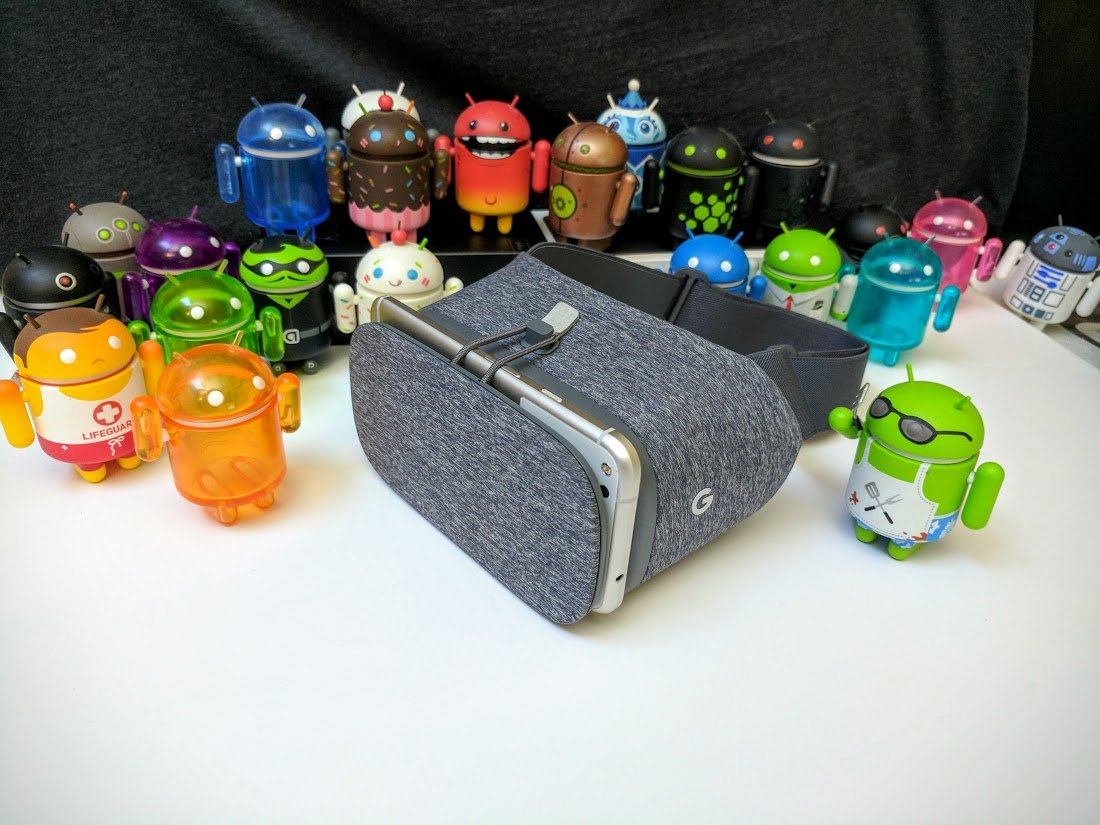
For those who have ever tried on a Google Daydream, you know that while it is a solid idea, it has some comfort issues. The area and your face lets in a lot of light and the strap isn't very secure, and although the additional over-the-head strap does help with that a little, it can press on your face in ways and playing for long periods does create a lot of fatigue.

At $99, the Google View is also at the expensive end of mobile VR, so I set out to see what alternatives there are.

More: Russell Holly's Daydream View 2017 review

The software is key

What makes the Daydream View worth having is not the hardware itself but the Daydream software and the list of apps that come with it. With the addition of the Daydream controller, the Daydream app is leagues better than the cardboard apps available, so I wanted to make sure we could use the Daydream app in our alternatives. There is really only one way to do that, however, and that is to already have a Daydream controller. Daydream apps don't start unless they detect the controller — having the headset alone isn't enough.

The hardware

There are, surprisingly, a large number of people selling just the Daydream controller on eBay. Refurbished and even new ones sell for around $35 and look exactly the same as the one you would get with the Daydream View, but i wanted to keep the price as low as possible, so I went for something else.

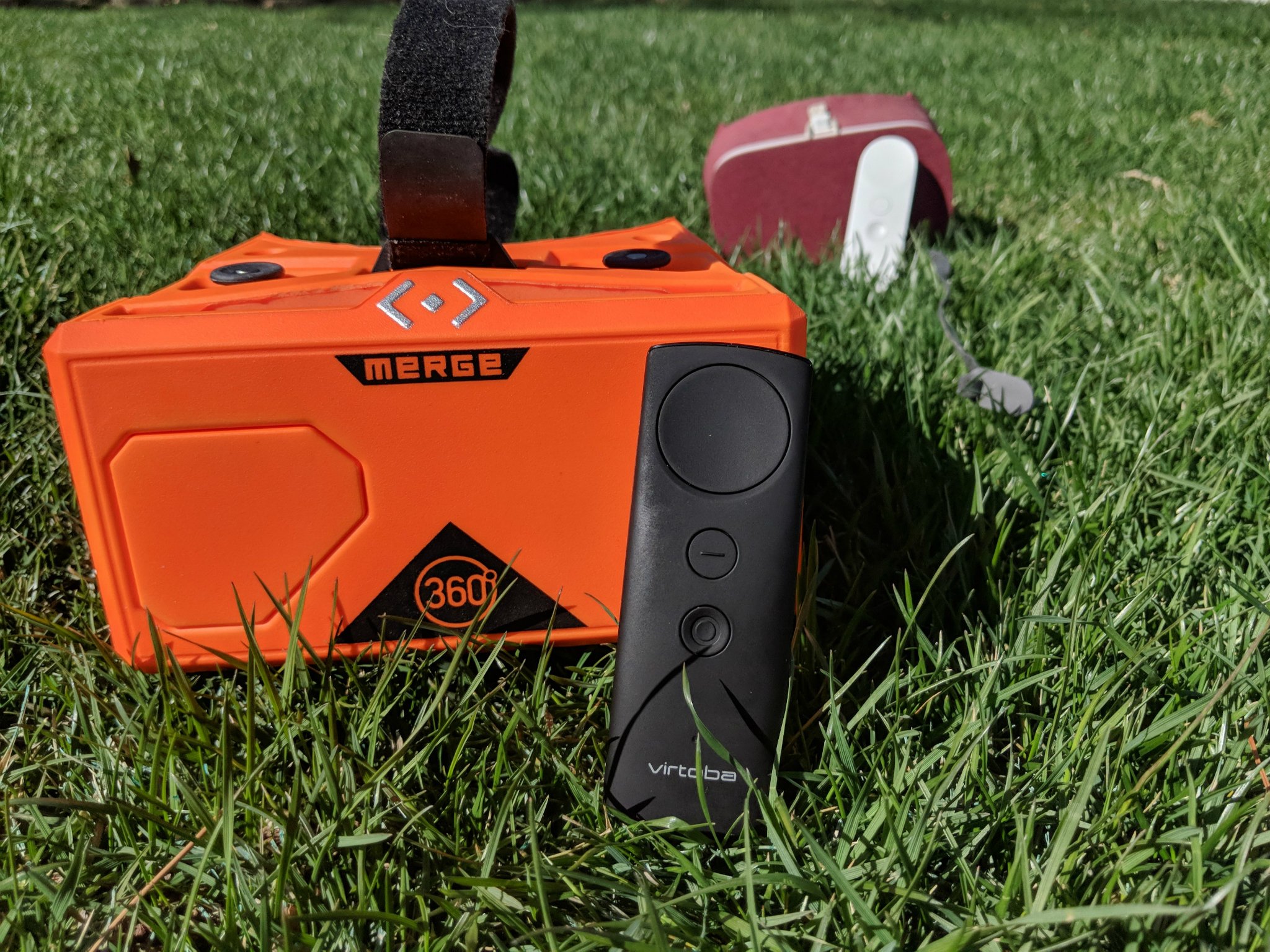
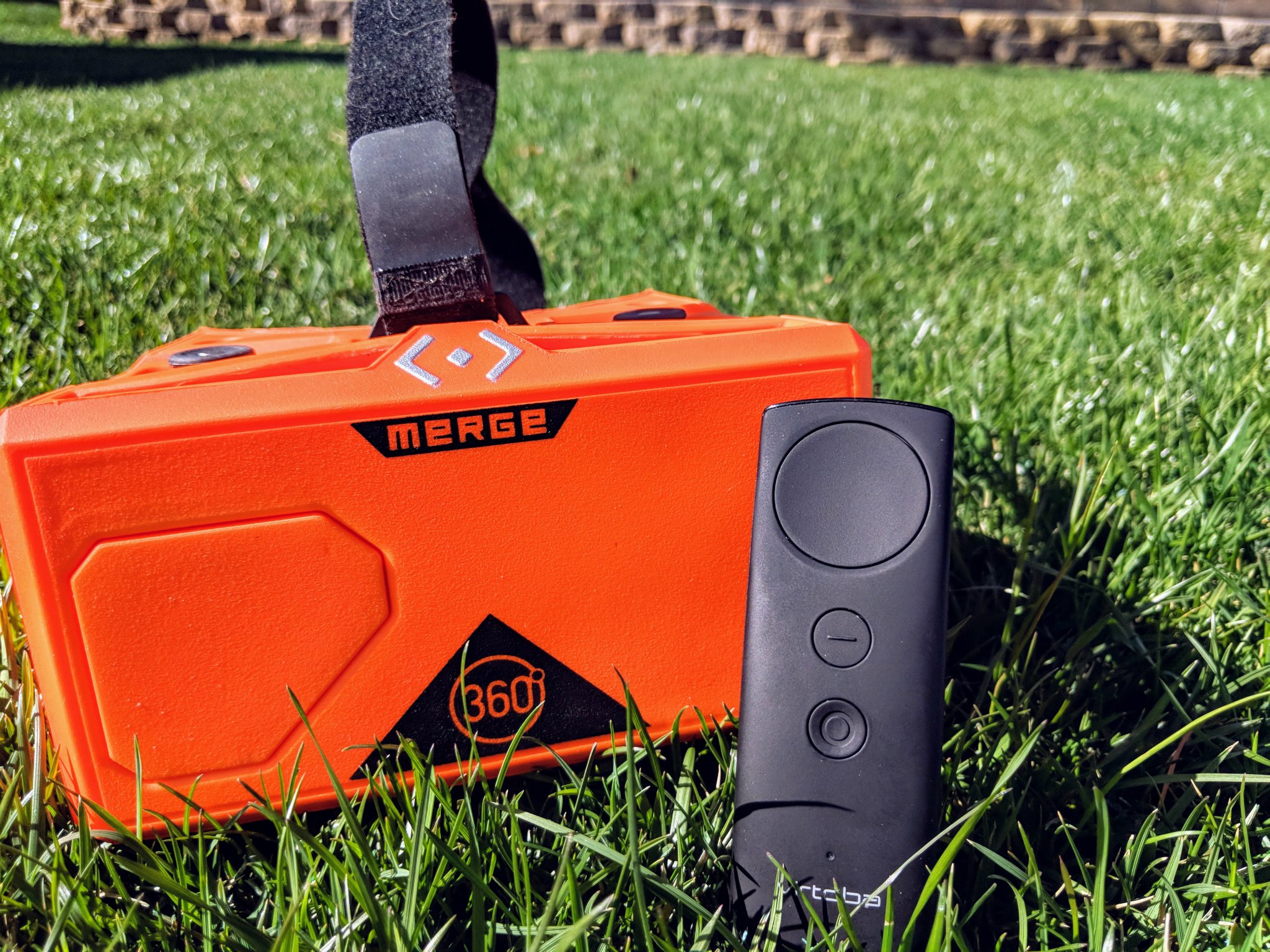
I went with the Virtoba VR Remote Controller, a slinky black number from Amazon for the low price of just $22 and I bought it with the sure and certain knowledge it would suck, but boy was I wrong. Once you have it all set up, the Virtoba works exactly like the Daydream Controller — all the same buttons, the same level of response, 3 degrees of freedom, everything, and it does it in a controller that weighs almost nothing for $20.

I also decided to use the Merge VR headset I had laying around at home for the cardboard headset. You can use any Cardboard-ready headset that has the QR code on it, so if you have one already, you can save some money. The Merge VR is a personal favorite of mine — with its soft foam and adjustable head strap, it's ideal for longer play times. The Merge VR headset is coming down in price all the time and the new headset is set to be as little as $30. Bargain.

See Merge VR at Amazon

See Virtoba controller at Amazon

The software

It is important to remember that you will still need to own a Daydream Ready phone to install the Daydream App. From here I assume you have one so I will go into the setup procedure, it's a little tricky and you do have to use the Daydream developer options but I will take you through it all.

The steps

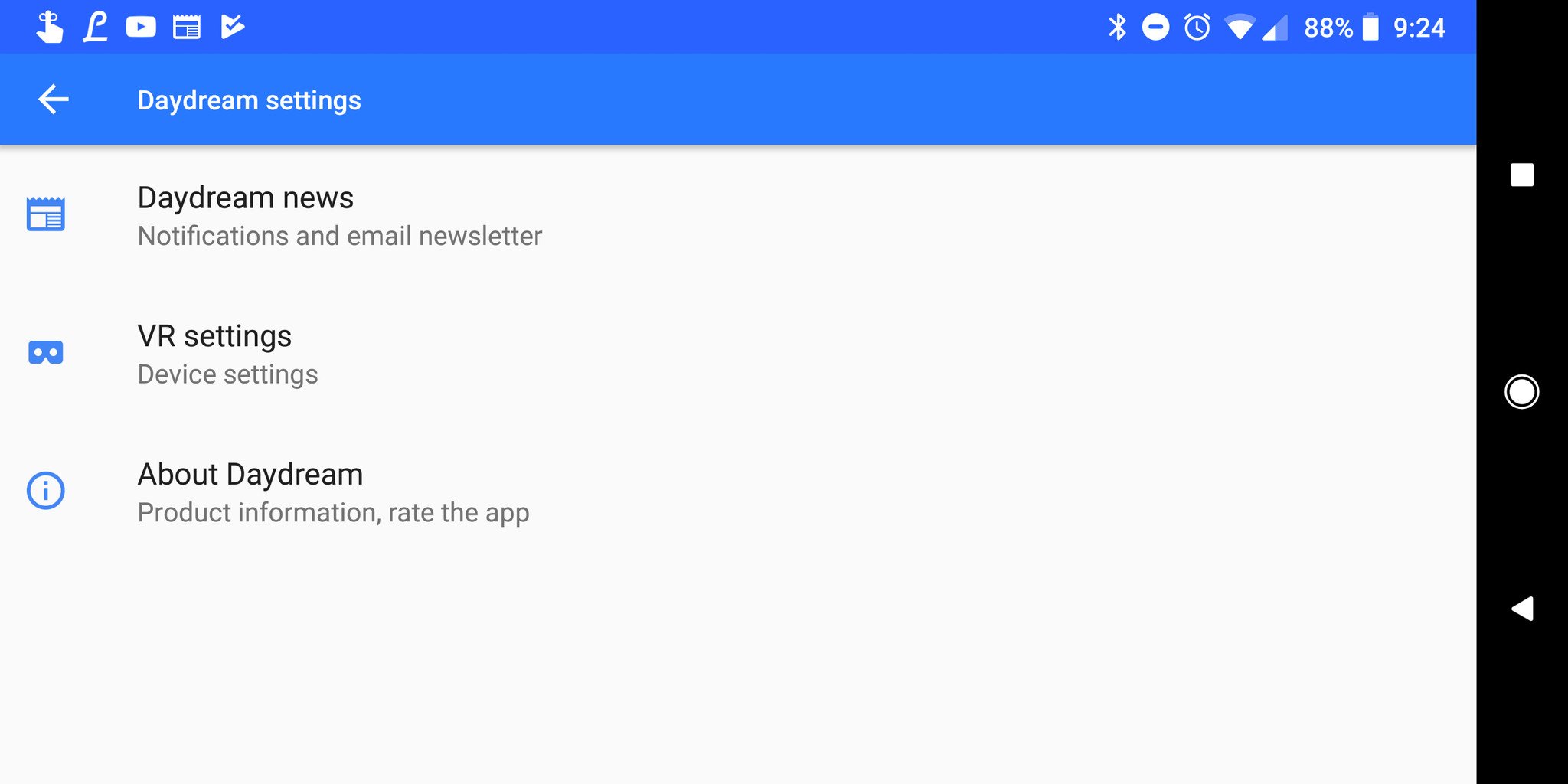
  1. Open the Daydream app Settings and tap VR Settings.
  2. Tap controller, then Pair New Controller.
  3. Press and hold the menu button on the Virtoba until connected.
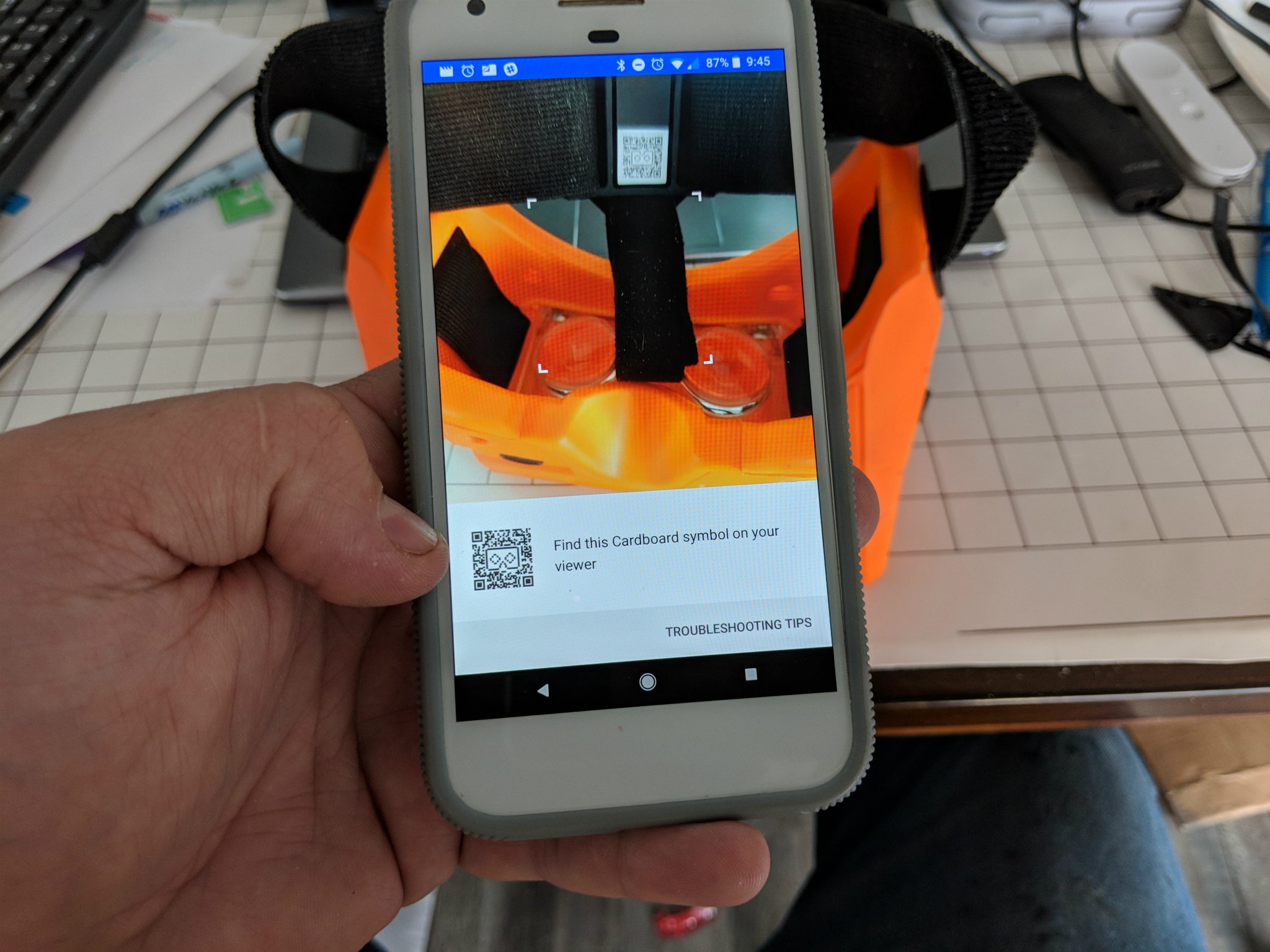
  4. Tap Headset and scroll down to and tap Other, then tap Scan Cardboard QR code.
  5. Scan the code on your Cardboard headset.
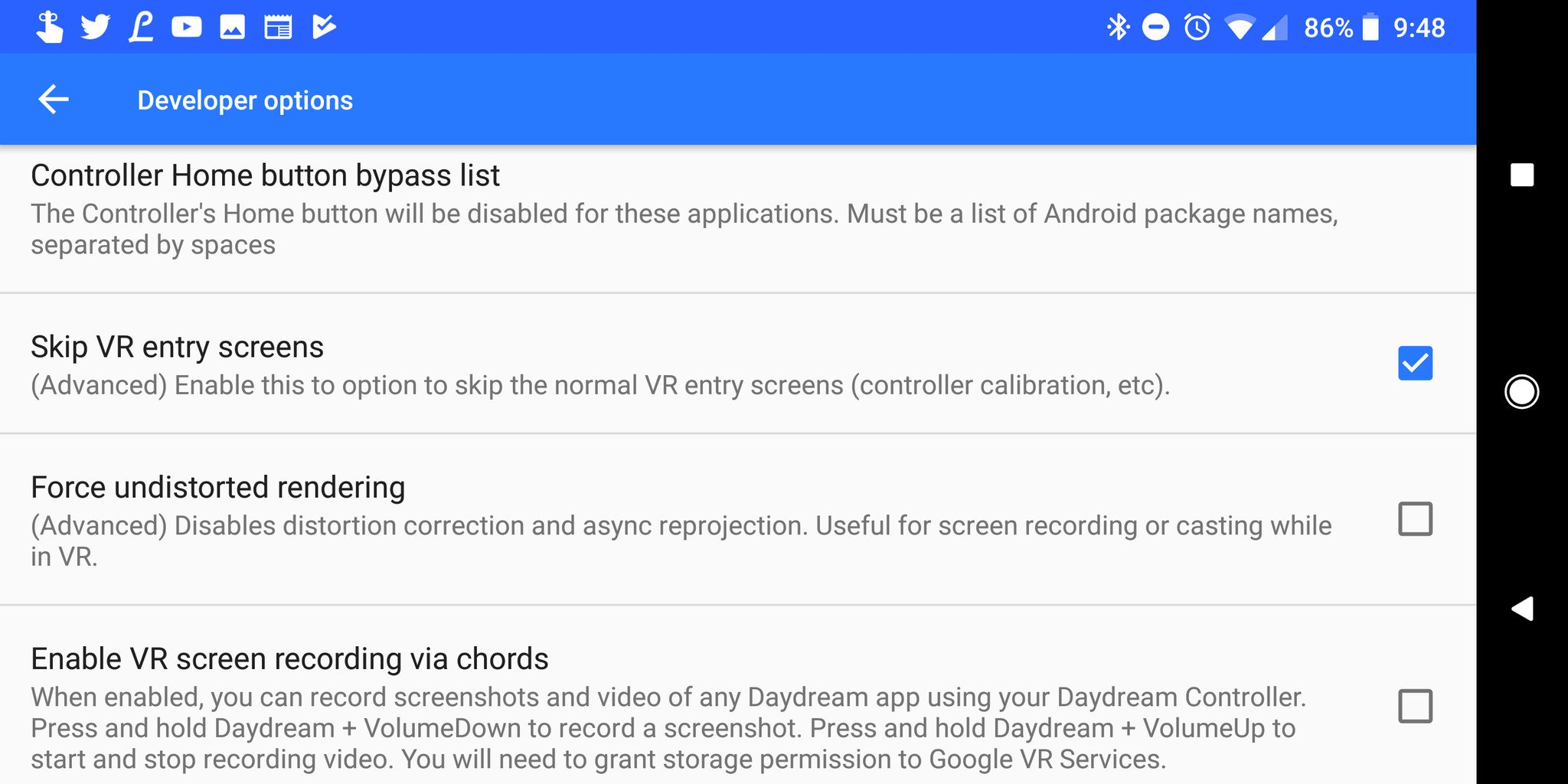
  6. Tap Build version multiple times until Developer options appear.
  7. Check the box for Skip VR entry Scenes.
  8. Open any Daydream app to get started.

More: Every Daydream app you can install right now

The details

Making sure the Headset you choose is officially supported by Cardboard is an important step. Because the Daydream View uses different lenses to the Cardboard the App needs to know what one you are using to adjust correctly. I have tried this on 3 different Cardboard ready headsets and it works perfectly with each one.

As you can see from the steps it's a pretty simple procedure except for the developer options. Hitting the build number to open up those options is fairly common in Android and don't think there are many in the Daydream app that actually breaks it, but I just kept to the one setting change to allow the Cardboard Viewer to be used.

Something to note as well; because you are skipping the entry screens you will not see the pop-up to turn on your controller. Don't panic, you can still turn it on and re-center in the exact same way you would with the entry screens on.

That's all it takes

And there it is, a fully functioning Daydream headset for around $50 — half what an official Daydream View costs. From here you can play any game or app you want as if you were using the official software. The Virtoba VR Controller is far better than I thought it would be and at $20 it makes all the difference.

If you have any questions or if you have already done this, let us know in the comments below.

Best Cases for Essential Phone

Keep your Essential Phone safe and functional with a quality case!

The Essential Phone was the first phone released by Andy Rubin's new company in 2017 and while it didn't blow away the competition it did offer us phone nerds a sleek new alternative.

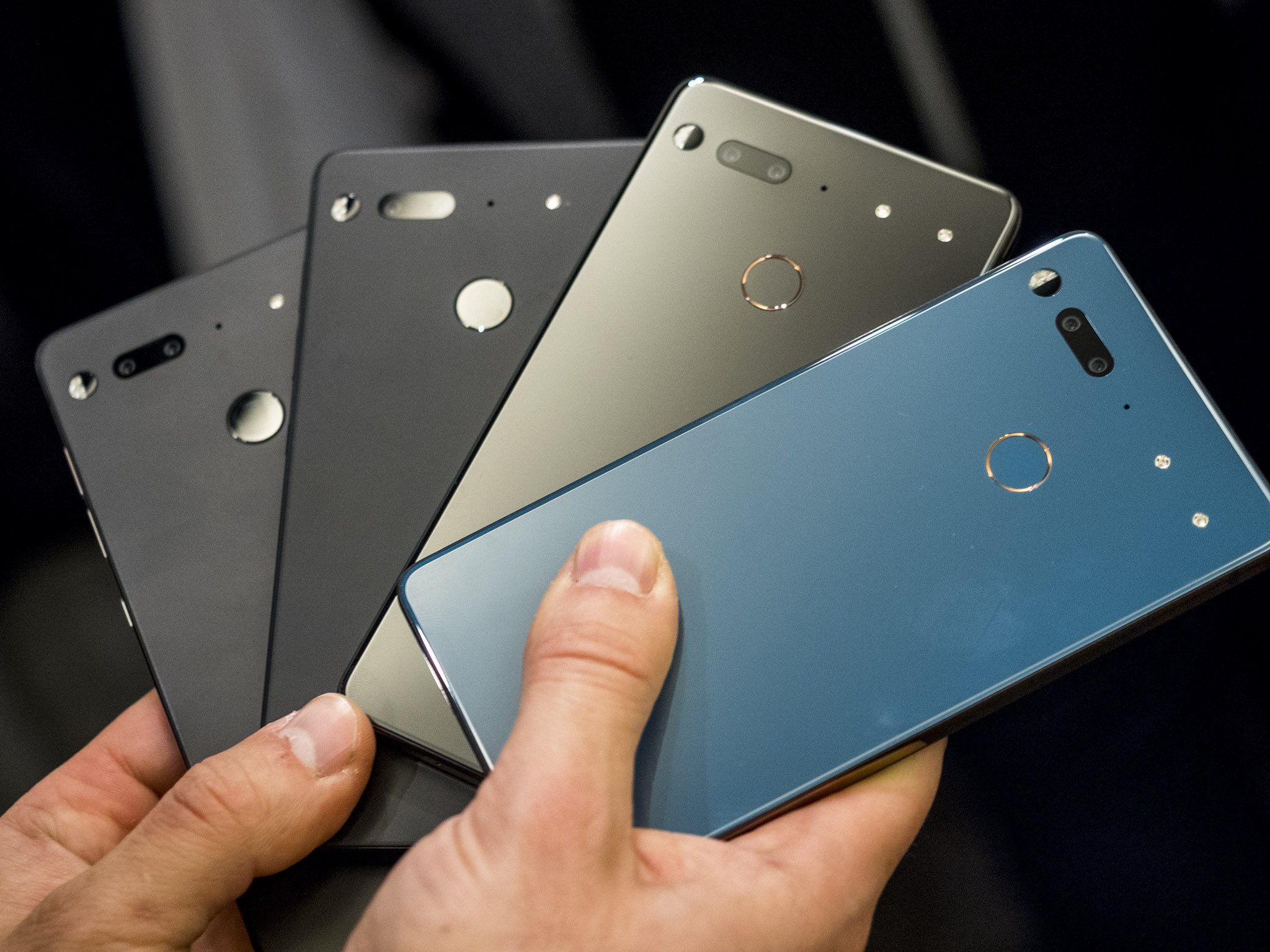
With the price of the phone down to just $450 on Amazon and the recent announcement of three new color styles just released, you might be considering picking up the Essential Phone. If you are, you should also considering getting a case.

Do note that the 360-camera accessory will not be compatible with your phone in a case, so that's worth keeping in mind if you find that add-on (currently available for just $75) to be a compelling feature.

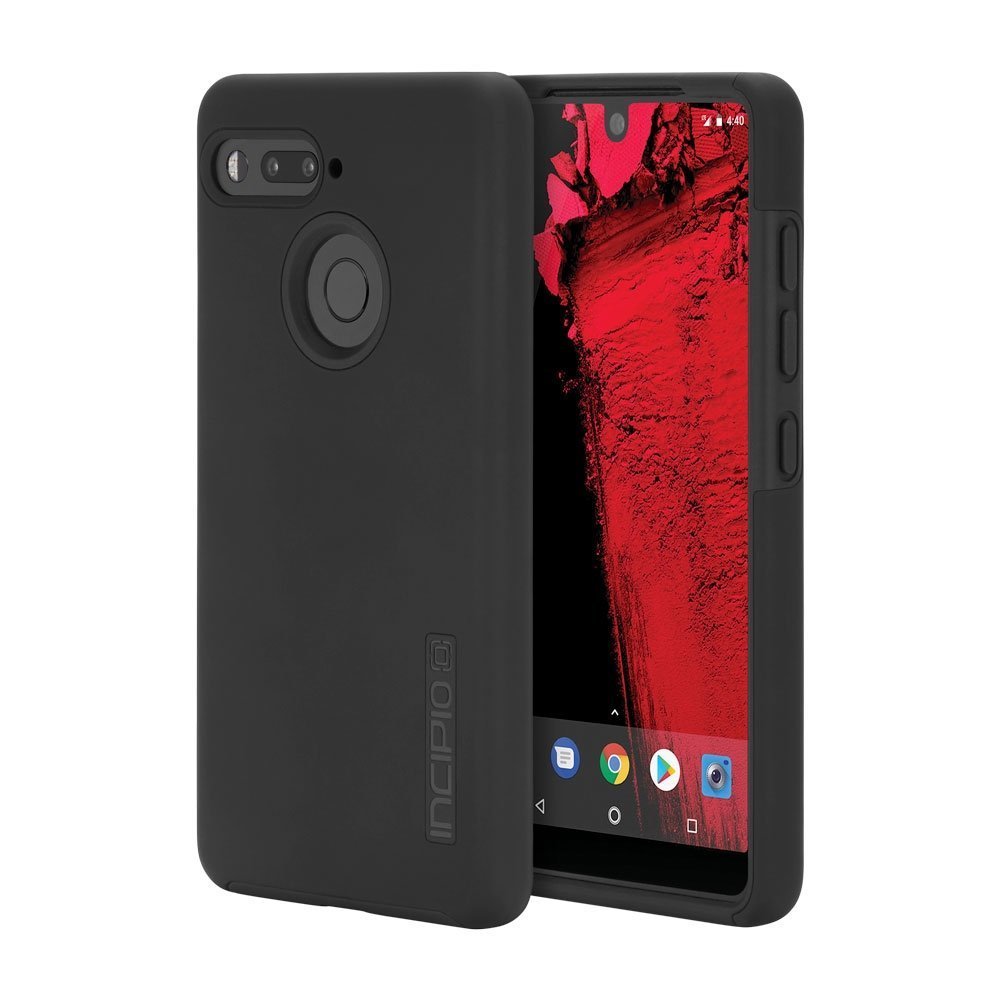
Incipio DualPro

Incipio offers a couple case options for the Essential Phone, and what better place to start than with the refined DualPro case.

Offering two layers of rugged protection, this case will keep your Essential phone well protected from scuffs or drop damage. The hardened outer shell features a soft touch finish that'll feel real nice in your hand and overall the design here is pretty minimalist.

Available for $25, this is a great option for the Essential Phone.

See at Amazon

Incipio NGP Pure clear case

If you bought your Essential Phone because of it's fresh design choices, you might be wary to cover that ceramic up with an opaque plastic case. Incipio has you covered with this one-piece clear case that offers a clear view of your Essential Phone while keeping it protected.

Made of a flexible polymer material, this is an easy case to install with full coverage around the edges of your phone, including a lip around the screen and protection for the camera around back.

Get yours for just $18 on Amazon!

See at Amazon

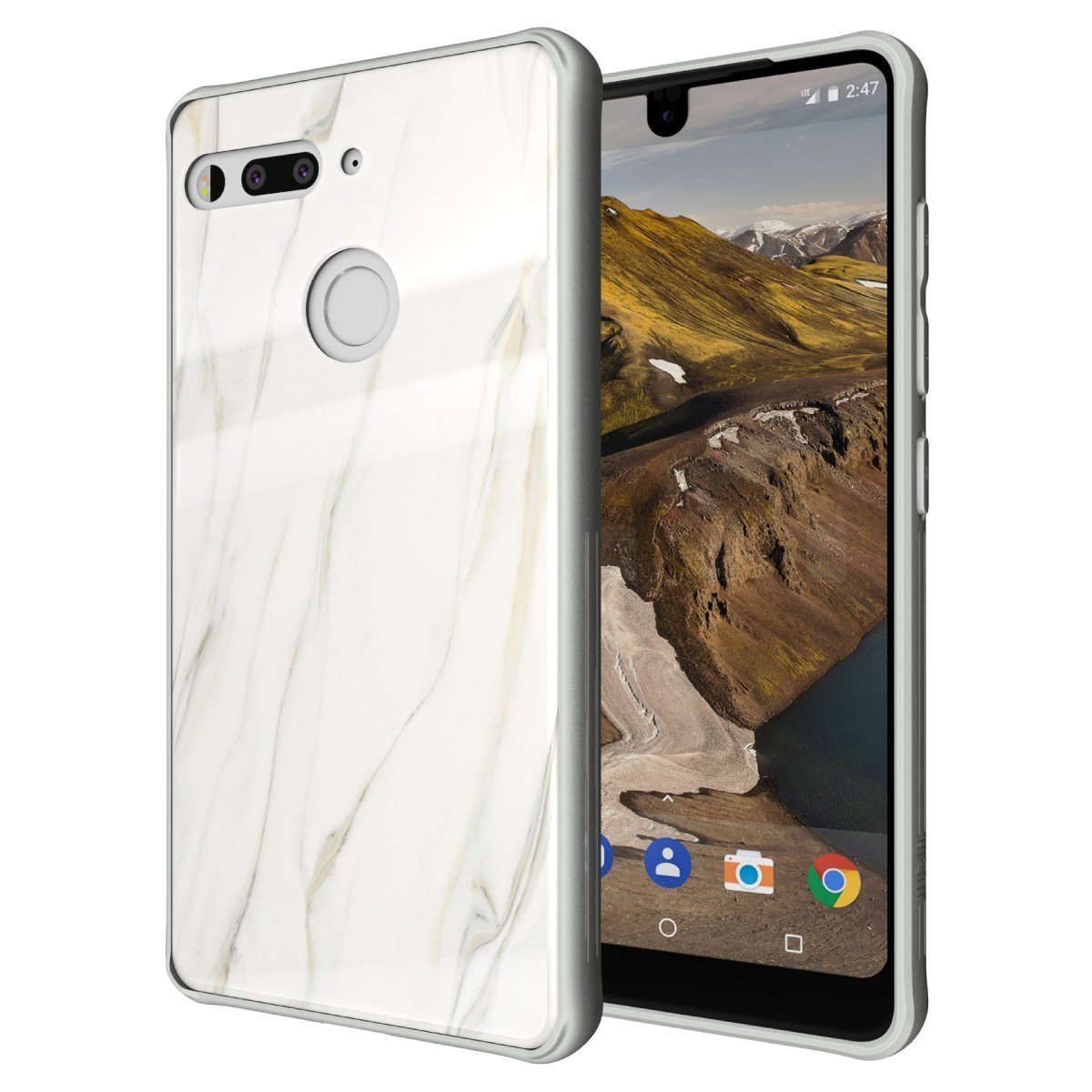
TUDIA Ceramic Feel case

The Essential Phone was designed with a ceramic backing — not something you see on many major phone releases. If you love the feel of that Ceramic backing but also want to keep it safe, TUDIA offers this case that mimics the same hand feel of the Essential Phone's ceramic while keeping the device itself safe.

To accomplish this, TUDIA designed the case with tempered glass on the back of the case for extra protection — the same rugged stuff used in the best screen protectors. By doing this, they've managed to maintain the look and feel of the Essential Phone which is pretty great.

It's a really thin and minimalist case that's available in five different styles (including the super stylish white marble pictured) for just $20.

See at Amazon

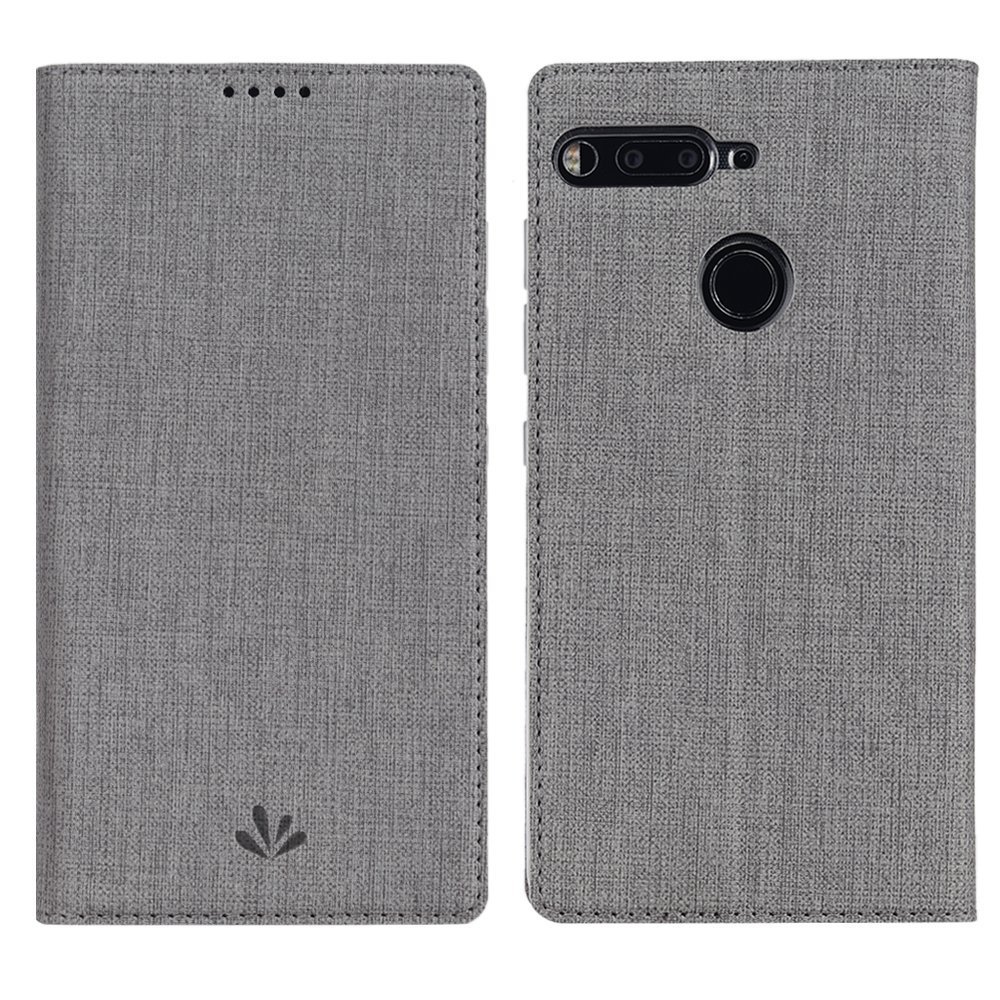
Feitenn Flip Wallet case

Looking to add some extra functionality to your phone carry? A wallet case lets you store your ID, credit card, and some cash right along with your phone so everything you need for a night out is in one place.

This case combines synthetic leather or fabric with a soft and clear TPU shell on the inside to provide top-notch protection for your phone. There's a magnetic closure to keep the front flap closed when not in use, and it can also be folded over to be used as a kickstand for watching videos

Get yours for just $12 in your choice of six color styles.

See at Amazon

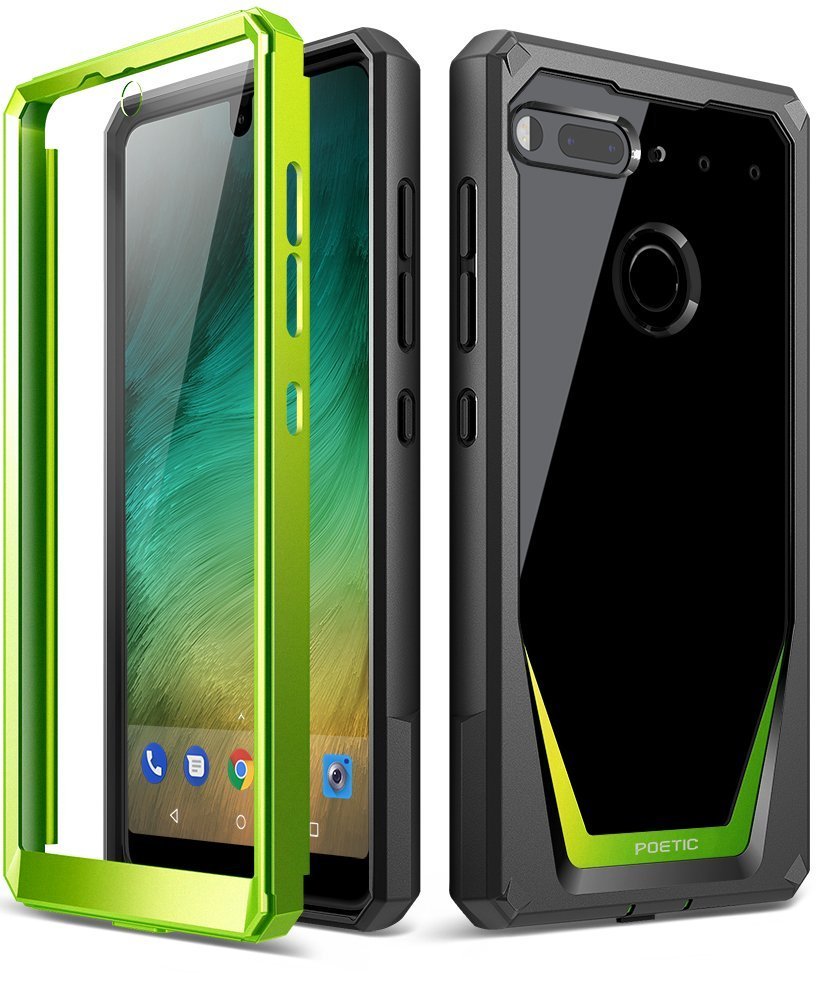
Poetic Guardian Full-body case

Looking for something that combines flashy design with rugged protection? Check out these Poetic Guardian cases.

This is a full-body case that includes a front plate with a built-in screen protector. Combining soft and shock absorbing TPU with rigid PC bumpers offers great protection for your phone.

The back panel is also clear so you can still show off the design of your phone, and it's available in four fun color styles.

These will start shipping from Amazon on March 15. Order yours today for just $17.

See at Amazon

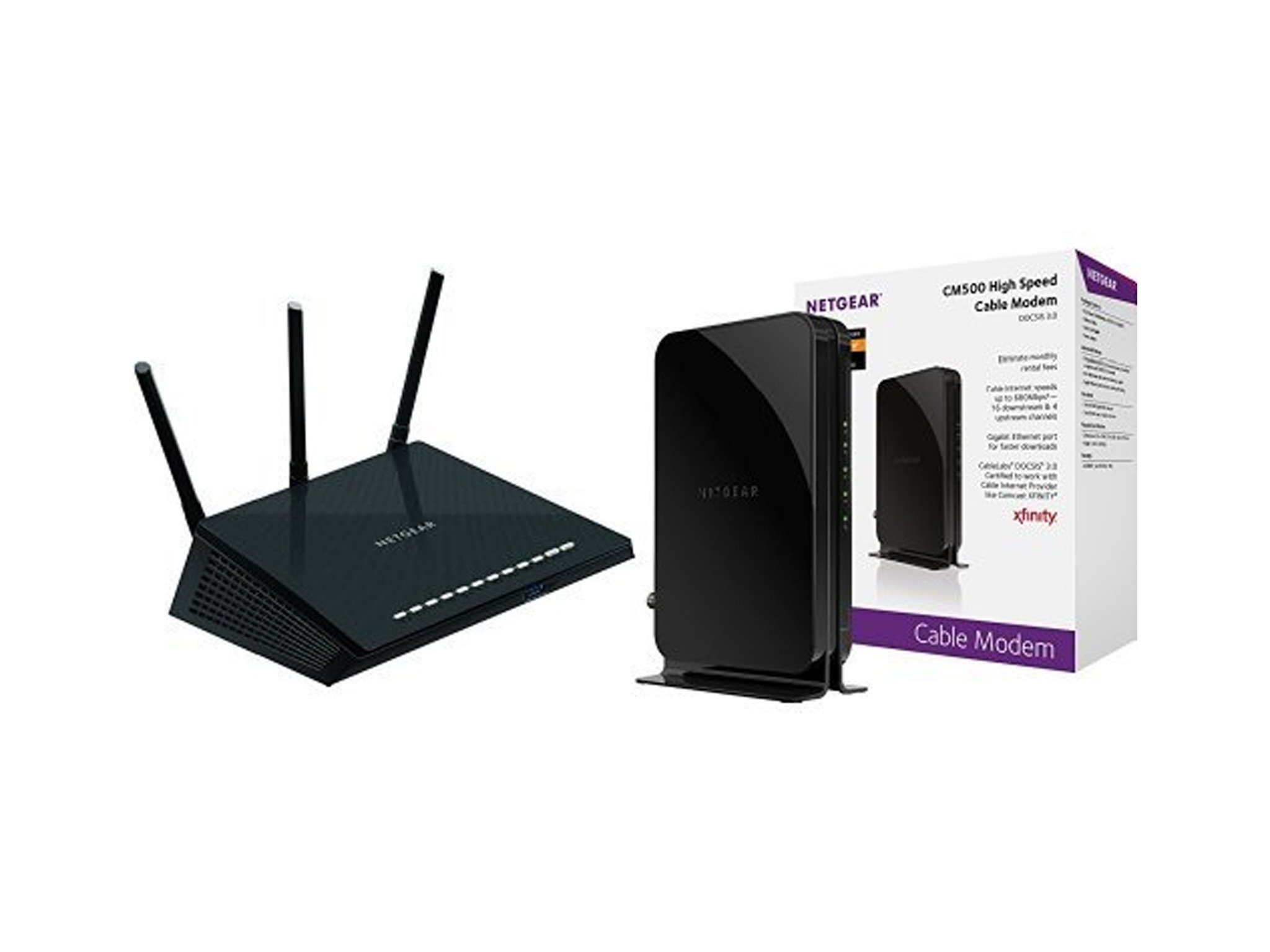
The Netgear R6700 wireless router and CM500 cable modem are bundled together for $88

Free yourself from your ISP and save money, too.

Amazon is offering Netgear's Nighthawk R7600 router and CM500 modem bundled together for just $88.46 right now. Considering, the Nighthawk R6700 router is $80 on its own, and the CM500 modem is $48, you're saving a lot of money with this bundle. This price is $10 better than the previous deal we've seen for it, and the lowest we've ever seen for this bundle.

The Nighthawk R6700 is an awesome router with 19,560 user reviews giving it 4.2 stars. It has high-powered antennas and has technology that boosts range, speed, and performance. It works well in homes with a lot of Wi-Fi devices, which most homes are these days.

We always recommend buying your own cable modem to avoid the rental fees major ISPs charge. And the CM500 is a great machine to do that with because it's a modern device capable of handling some of the fastest plans available.

With DOCSIS 3.0 and 16x4 channel bonding, the CM500 is capable of speeds up to 680Mbps. It's compatible with Windows and Mac and works with every major browser. It works with every major ISP, too, including Comcast, Spectrum, Cox, Charter, and others.

See at Amazon

OnePlus 6 supposedly leaks with iPhone X notch and glass back

There's also an updated fingerprint sensor and two rear cameras.

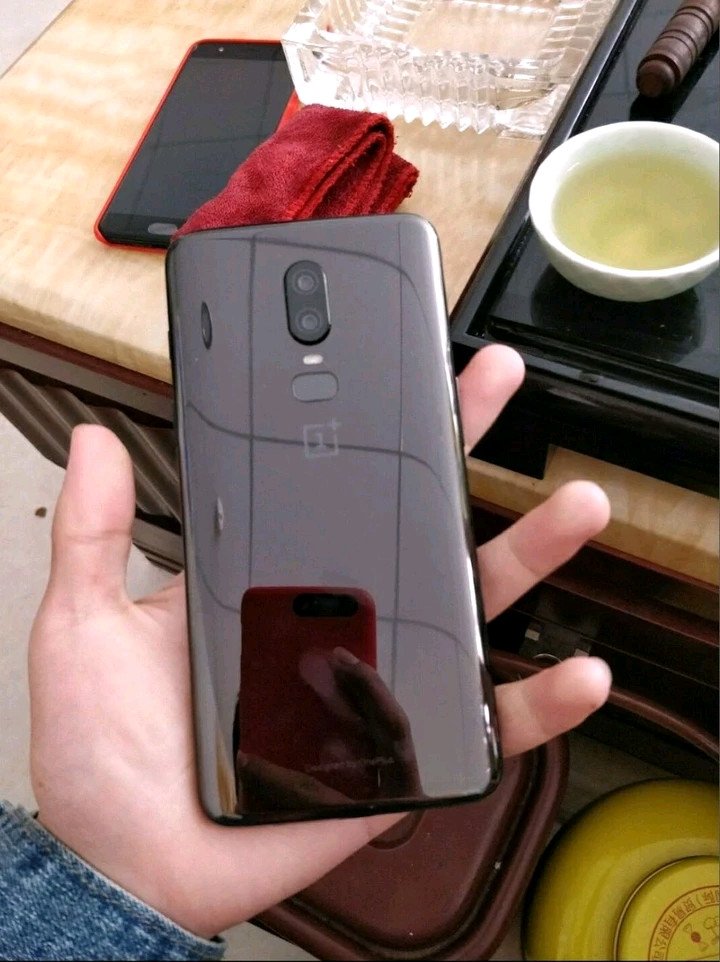
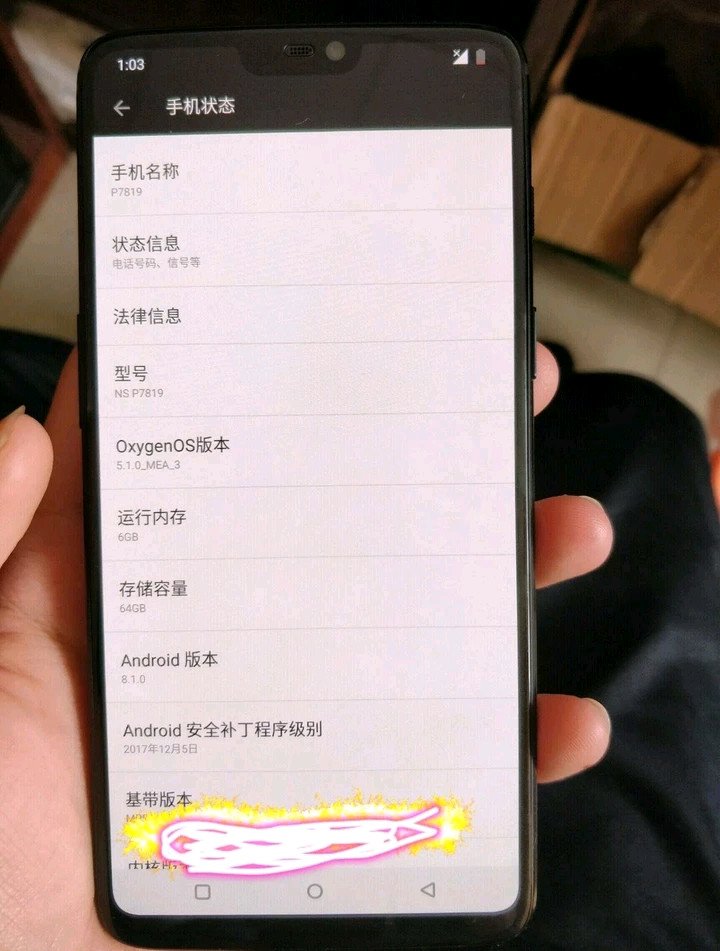
The OnePlus 5T is still a relatively new phone at just four months old, but the mobile industry stops for no one. Two images of a OnePlus 6 recently popped up on our radar, and if they're to be believed, OnePlus will be the next company to jump on board the infamous notch train.

As you can see, the OnePlus 6 will come equipped with very slim bezels. This isn't surprising considering we saw a similar design with the OnePlus 5T, but what is different is the notch at the top of the screen. This is very clearly a direct copy of what Apple did with the iPhone X, but unlike that phone, you won't find any special face-tracking sensors – just a speaker for phone calls and the front-facing camera.

A glass back could mean OnePlus finally adopts wireless charging.

Moving to the back of the phone, the OnePlus 6 could be the first OnePlus phone to adopt a glass back. This would allow for wireless charging, but it's also a stark departure from the unique Lava Red and Sandstone White designs we saw with the 5T.

Also on the back of the OnePlus 6 are dual rear cameras in the center and a fingerprint sensor below them – both with updated looks compared to the 5T.

As exciting (or terrifying) as these pictures may be, it's important to take them with a giant grain of salt. Even if these photos are legit, it's possible this is just one of the many prototypes OnePlus is working on and not necessarily representative of what the final product will look like.

With that disclaimer out of the way, what are your impressions of the OnePlus 6? Are you a fan of the new look, or do you just wish the notch would die already?

ASUS ZenFone 5 hands-on: This iPhone X runs Android

Evie Launcher review: Still simple, stylish, and steadily improving

In the vast world of third-party Android launchers, Evie Launcher cuts through the crowd with simple sophistication

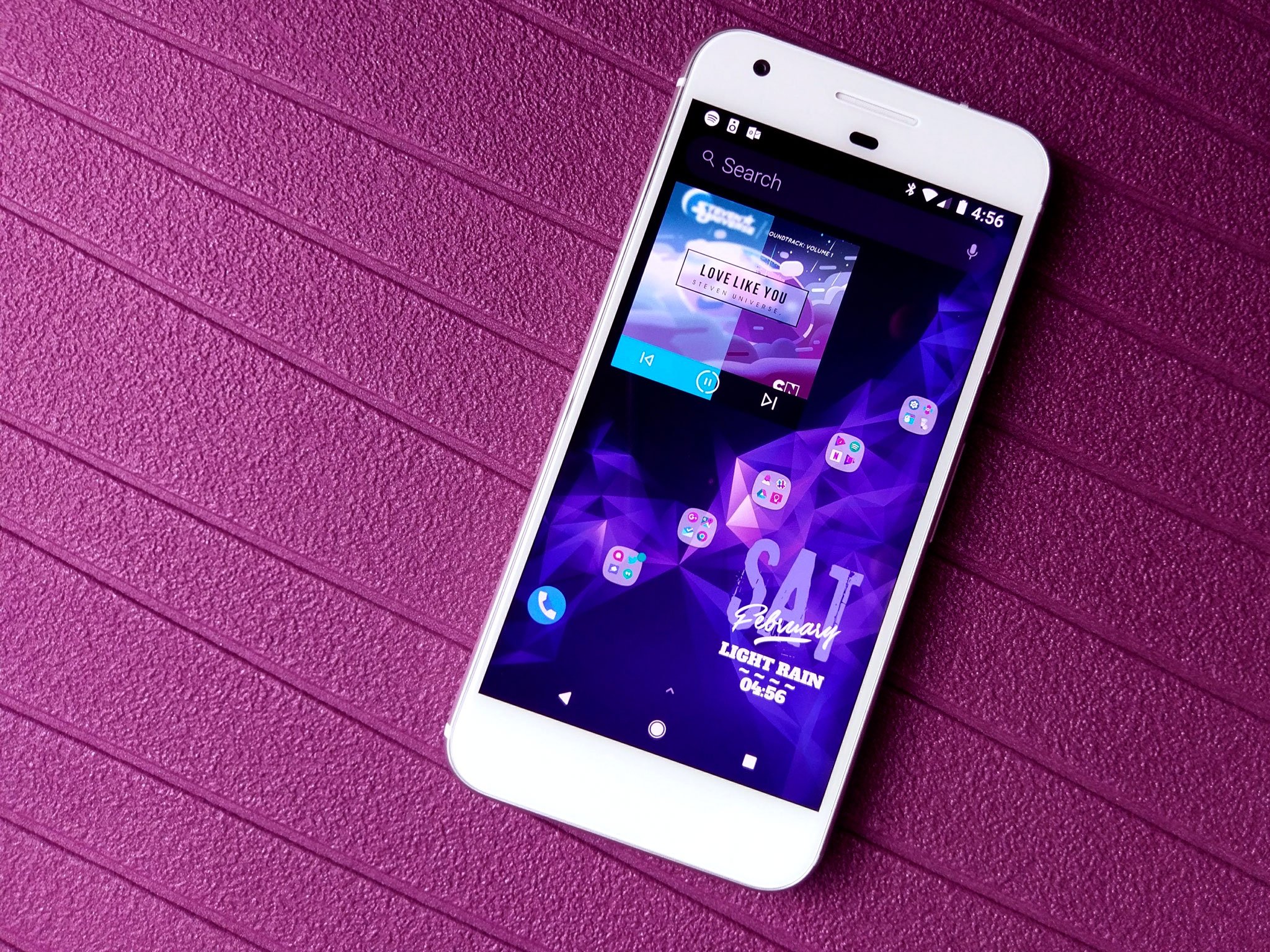
The world of Android theming is beset with big, bold, bombastic launchers that throw everything but the kitchen sink into their features, bells, and whistles, but sometimes you don't need all the pomp and pizzazz. Sometimes, you want a launcher that's light, lithe, and luxurious. If you're in the market for a launcher that's as simple as it sophisticated, Evie Launcher may earn its place as your next home screen, and as a free launcher, giving Evie Launcher a try doesn't cost you anything but a little time.

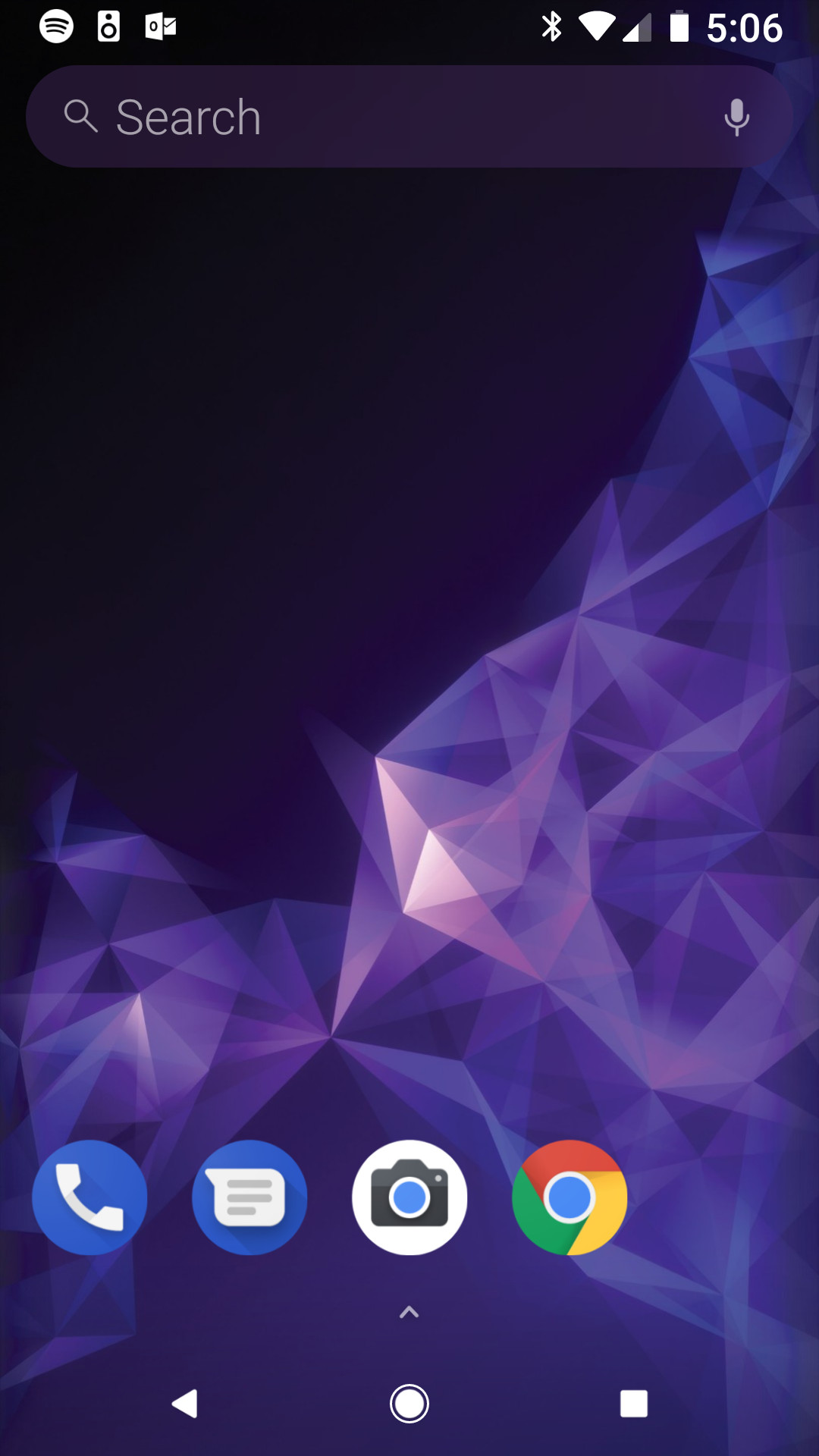
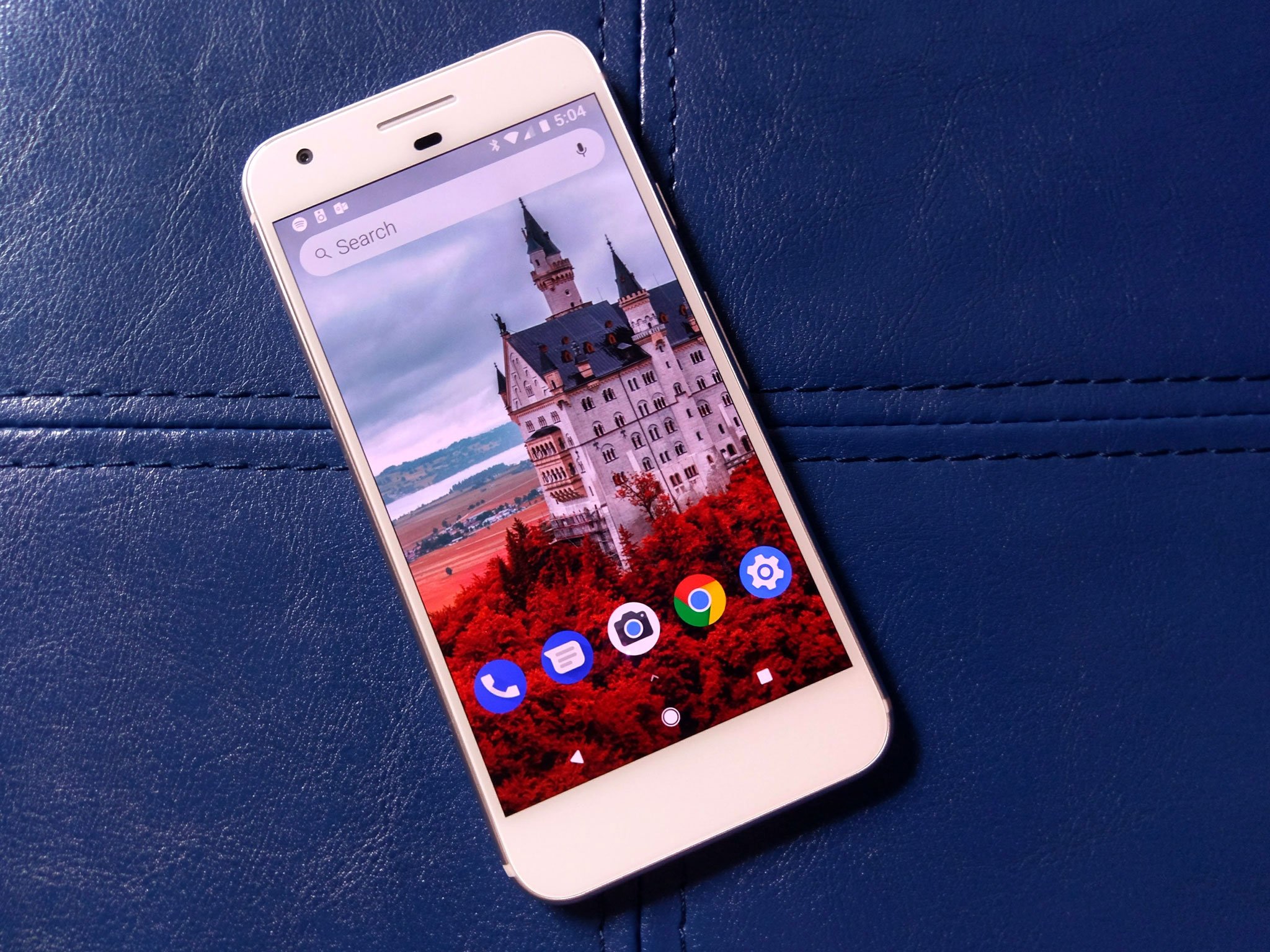
Evie Launcher's default setup is breathtakingly simple, featuring only four apps at the bottom of the desktop and one permanent search bar at the top. By default, Evie Launcher keeps the dock turned off, which definitely sets it apart from the pack, but it also leads to Evie missing the dock icons when importing a layout from another launcher during the initial setup.

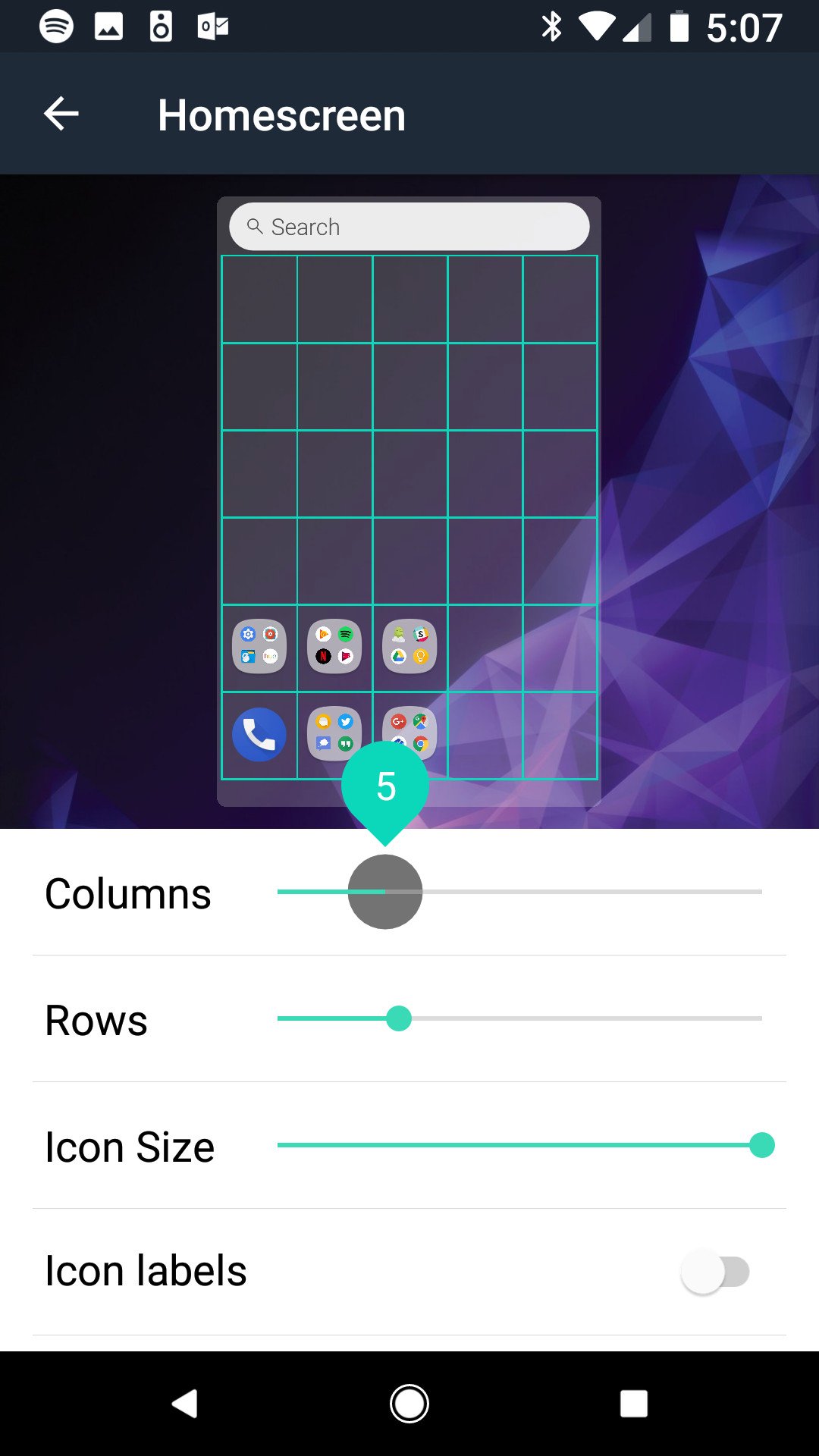
Another break with tradition is Evie's default grid size. While 4x4 has been the standard since the 4-inch phone days, Evie Launcher has a default desktop of 5x6 and is willing to take on any grid size from 3x4 to 12x12. With extra tall screens becoming the new normal, having a wide array of grid sizes is important, as you're going to want a few more rows to take advantage of that real estate.

The search bar is a permanent part of the Evie Launcher home screen, and it features one of the two gestures that are permanently turned on: swipe down to search. I wish there was a toggle to switch this gesture from opening the search bar to the notification shade — especially for those extra tall screens I mentioned before — but for now, it's a constant reminder that "hey, you can search for stuff". It's cool, Evie, but I just wanna see who texted me!

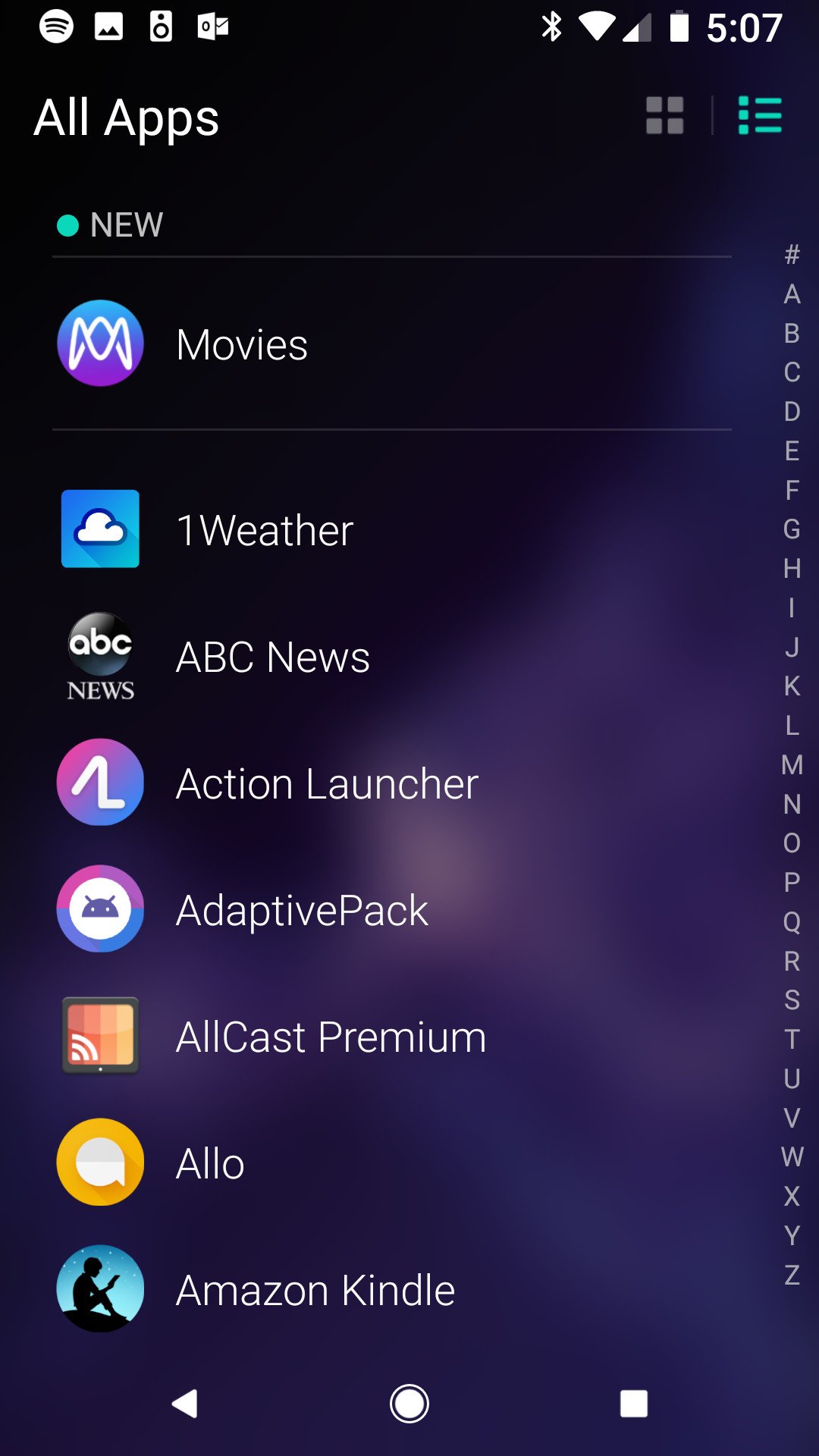
The other permanent gesture fits in with the Samsung Galaxy line and the Google Pixel: swipe up on the desktop to open the app drawer, and swipe down from the top of the app drawer to return to the desktop. The app drawer has two modes: a traditional list style or a more customizable grid layout.

Getting back into Evie's settings, you have a bit more customization here than most light, speed-oriented launchers. Beyond setting an icon pack and adjusting your app drawer grid, you can turn back on our dock, unread badges or Android O notification dots, and even turn on a few extra gestures.

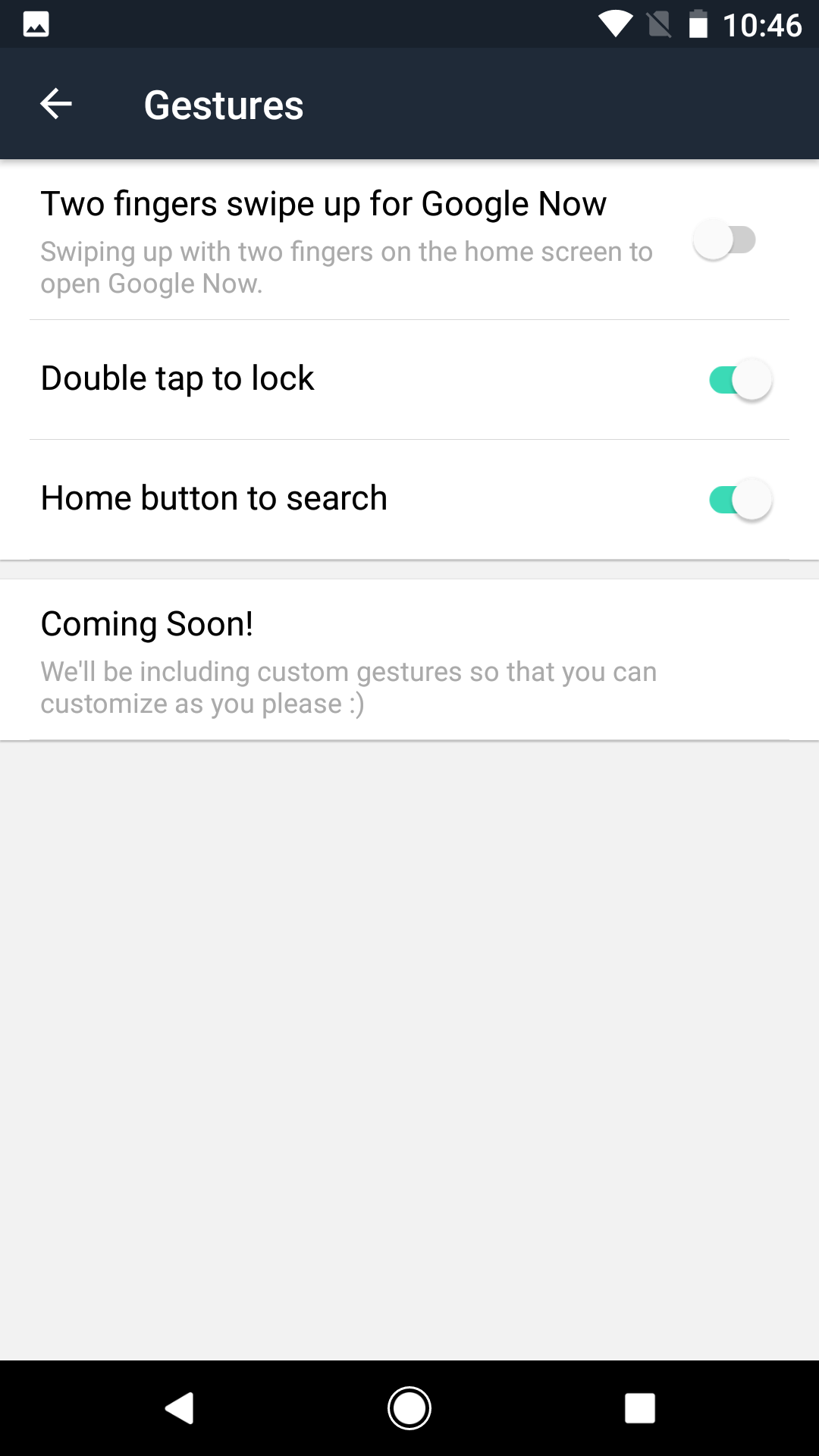
More robust gesture controls have been listed as "coming soon" for a year now, but there's still one gesture here I highly recommend turning on: double-tap to lock. There are even two methods you can choose from — just like Nova Launcher — a method that actually locks the phone and a method that just times out the screen in order to keep your phone unlocked via Smart Lock.

Evie Launcher is definitely showing promise, especially for users who will be left wanting when Google Now Launcher is pulled from Google Play. (That is still happening right?) While I wish it was better at importing dock elements, the launcher has made steady, stable progress in the year since we first reviewed it. Once more robust gesture controls come to Evie, it should be quite the apt competitor in a crowded launcher market, but it's no slouch right now.

Download: Evie Launcher (Free)

Updated February 2018: This review was updated to reflect almost a year of development for Evie Launcher and update some links.