Appnext

Minggu, 02 Desember 2018

Best Nokia phones in 2018

Nokia is back, and it's stronger than ever.
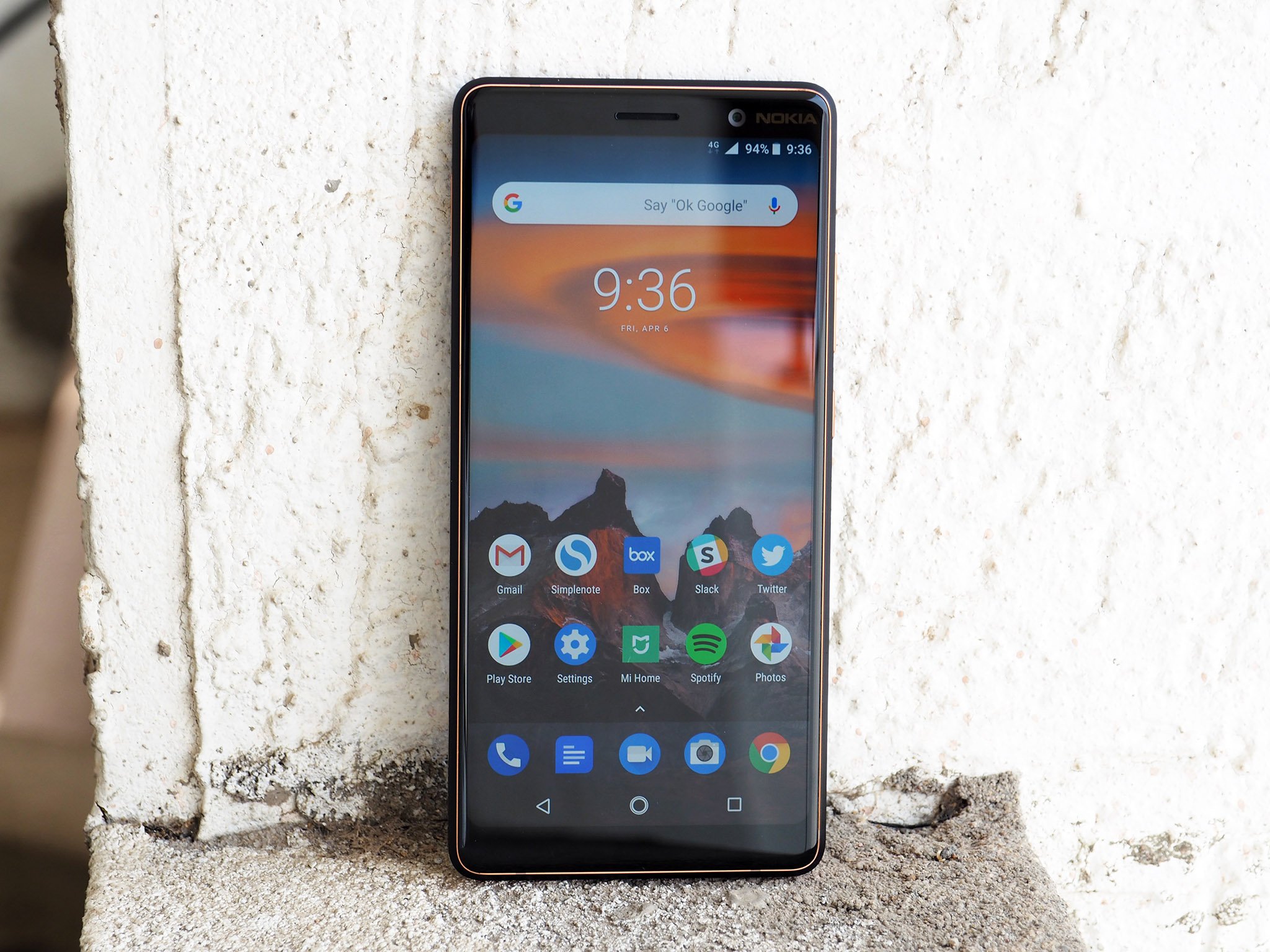
At the start of 2017, a company made up of Nokia veterans called HMD Global revived the storied Finnish brand after securing exclusive rights to the Nokia name. The last 18 months have been fruitful for the brand on many fronts, and it's safe to say that Nokia is one of the most interesting Android manufacturers around.

Following its re-entry into the smartphone segment, Nokia made a series of strategic moves that allowed the brand to stand out. First, it focused on emerging markets like China and India to drive growth. After all, the Nokia brand still has a lot of cachet in these countries, and with Android dominating the market share — exceeding 98% in India — it made perfect sense for HMD to focus its attention in Asian markets.

From the onset, HMD relied on a clean and uncluttered user interface to differentiate its devices, and earlier this year the brand announced that it is committing to Android One for all devices going forward. That focus on simplicity and fast updates has allowed Nokia to get a leg up over Chinese manufacturers in the budget space.

Nokia is also catering to a wide swathe of the audience by rolling out phones from $100 to $600. With such a wide selection of phones to choose from, these are the best Nokia phones in 2018.

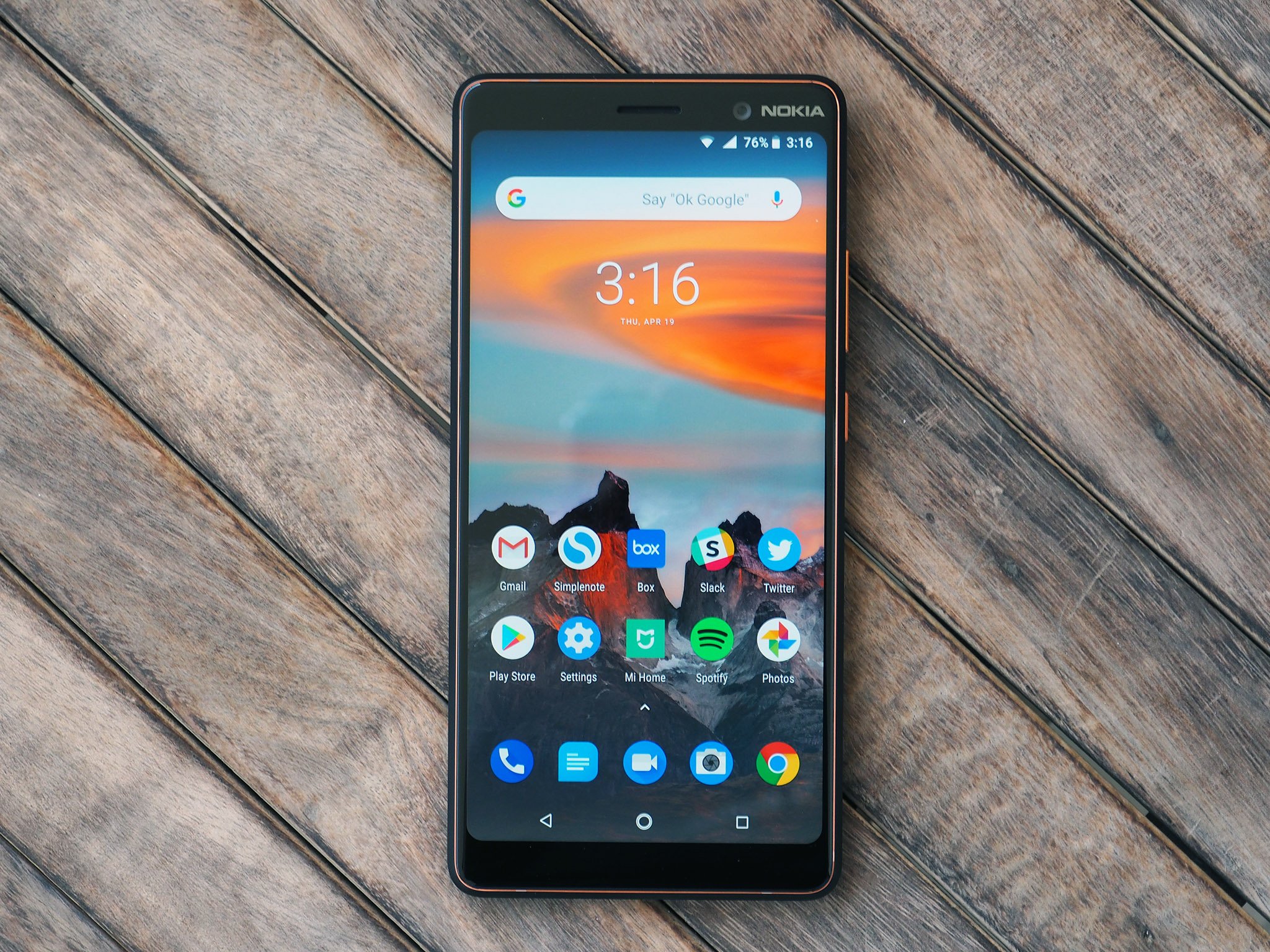
Nokia 7.1
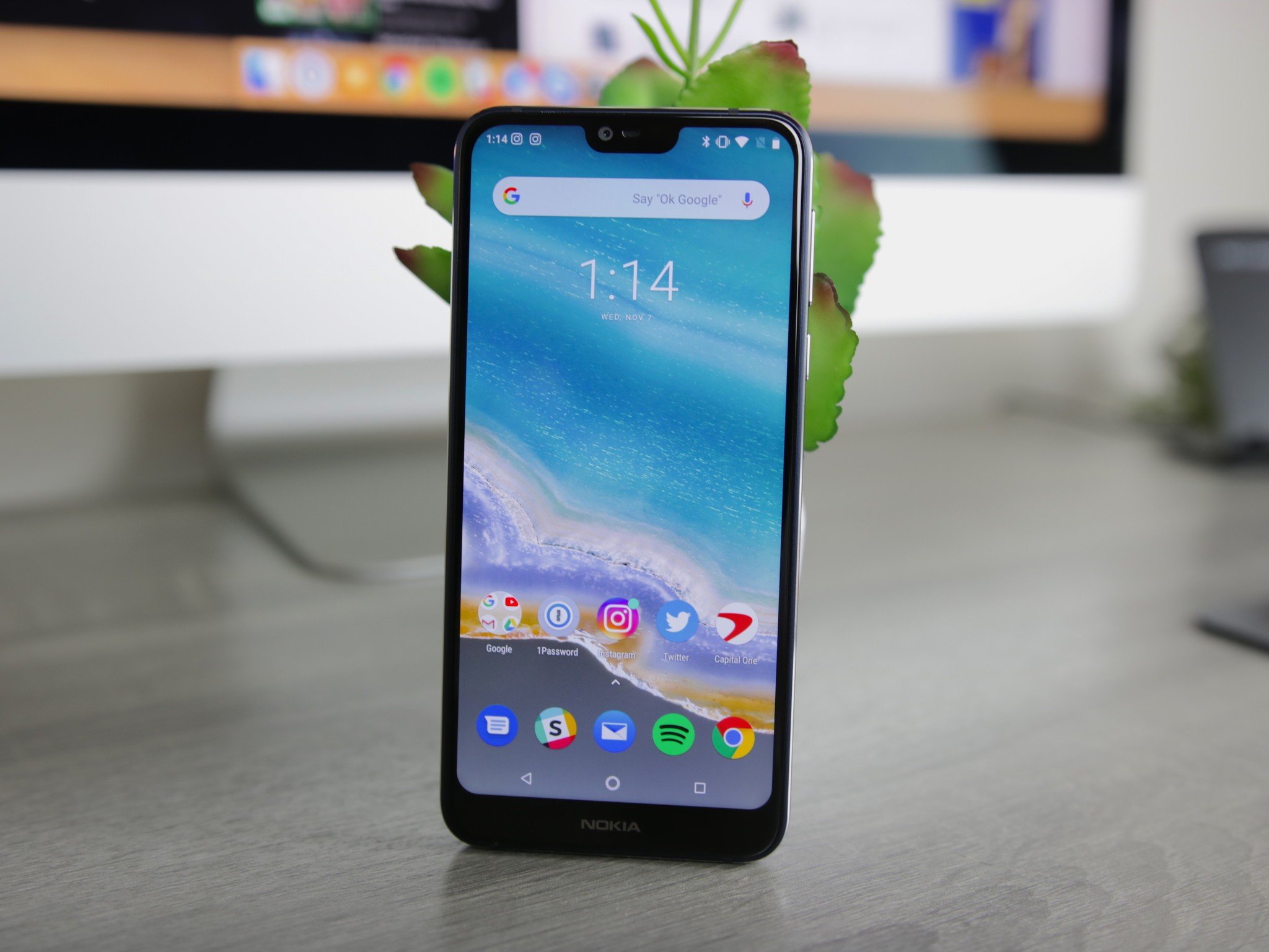
The Nokia 7.1 is notable for a lot of reasons. It is one of few Nokia devices up for sale officially in the U.S., and at $350 it hits the sweet spot for those looking for a decent budget phone.

The phone also has great hardware in the form of a Snapdragon 636 chipset, and it comes with 4GB of RAM and 64GB of storage as standard. The 5.84-inch FHD+ display is also intriguing as it has HDR upscaling for videos and games.

The primary 12MP camera at the back is joined by a 5MP shooter that adds depth information for portrait mode, and there's an 8MP shooter up front. You also get Wi-Fi ac, Bluetooth 5.0, NFC, USB-C, and a 3060mAh battery that delivers all-day usage.

Nokia 7.1 review: One of the best smartphone values available in the U.S.

Overall, the Nokia 7.1 is one of the best sub-$400 phones available in the U.S., and while the phone came with Oreo out of the box, Nokia is rolling out the Pie update right now. As the phone is sold officially in the U.S., it has the requisite bands for GSM carriers like AT&T as well as T-Mobile, along with the usual slate of MVNOs.

See at Amazon US

Nokia 7 Plus

The Nokia 7 Plus is one of the best phones I've used all year. Nokia has nailed the fundamentals both regarding design and hardware — the phone has a six-layer ceramic coating that makes it a delight to hold, and the series 6000 aluminum chassis is durable. In a segment dominated by glass-backed devices, the Nokia 7 Plus is one of few phones that can be used without a case.

Under the hood, the Nokia 7 Plus is powered by a Snapdragon 660 — a stalwart in the mid-range segment — and it ensures that you don't really run out of power, even when playing visually-intensive games. The phone comes with 4GB of RAM and 64GB of internal storage, and there's a MicroSD card slot that can take in a 256GB card.

Nokia 7 Plus review: Come for the value, stay for the excitement

The 6-inch FHD+ 18:9 display has vibrant colors and is backed by a layer of Gorilla Glass 3, the 12MP rear camera is one of the best in the $400 segment, and there's also a secondary 13MP telephoto lens at the back. There's a 16MP front camera, Wi-Fi ac, Bluetooth 5.0, 3.5mm jack, NFC, and 360-degree audio recording with OZO audio.

Another feature that makes the Nokia 7 Plus stand out is the battery life. With a 3800mAh battery under the hood, you'll easily get a day's worth of use from the device, and more often than not I was able to use the phone for two days on a full charge. Battery life got better with the Pie update, with the Nokia 7 Plus being one of the first devices to make the switch to the latest version of Android.

Even though it's eight months old at this point, the Nokia 7 Plus is a great option if you're in the market for a device in the vicinity of $400.

See at Amazon UK

Nokia 6.1

The Nokia 6.1 is one of the most rugged phones in the market today. The phone has a metal chassis constructed out of series 6000 aluminum, and the fit and finish are top-notch. Nokia's classic industrial design shines through the device, and you never get the feeling that you're using a budget phone.

Up front, the Nokia 6.1 has a 5.5-inch screen that retains the 16:9 form factor. On the plus side, the bezels aren't too invasive, and the phone comes with a USB-C charging port and has a 3.5mm jack. The Snapdragon 630 ensures things are chugging along nicely, and you can pair the phone with 3GB of RAM and 32GB of storage or 4GB/64GB storage options.

Nokia 6.1 review: Delivering value in simplicity

Like the Nokia 7.1, the Nokia 6.1 is up for sale officially in the U.S. via Amazon, with the phone compatible with GSM carriers like AT&T and T-Mobile as well as MVNOs like Cricket and Metro. Retailing for $229, it is one of the better options in this space.

See at Amazon US

Nokia 6.1 Plus

The Nokia 6.1 Plus shares a lot of similarities with the Nokia 7.1 — both phones have a similar design, near-identical hardware, and the same 3060mAh battery.

The main difference is that while the Nokia 7.1 is aimed at Western markets, the Nokia 6.1 Plus is limited to Asia. And with Nokia prioritizing markets like India and China, the Nokia 6.1 Plus costs considerably less than the Nokia 7.1. The base variant with 4GB of RAM and 16GB of storage retails for the equivalent of $225 in India, making it a great alternative to what Xiaomi and Honor offer in this space.

Nokia 6.1 Plus review: HMD's best budget phone yet

The Nokia 6.1 Plus does miss out on a few features from the Nokia 7.1. There's no HDR upscaling for the screen, and although the device has a 16MP primary camera, it is an f/2.0 lens. The Nokia 7.1, meanwhile, has a 12MP f/1.8 shooter. But the Nokia 6.1 Plus does offer FM radio and Quick Charge 3.0.

The aggressive pricing combined with the hardware makes the Nokia 6.1 Plus one of the best budget phones of the year.

See at Flipkart

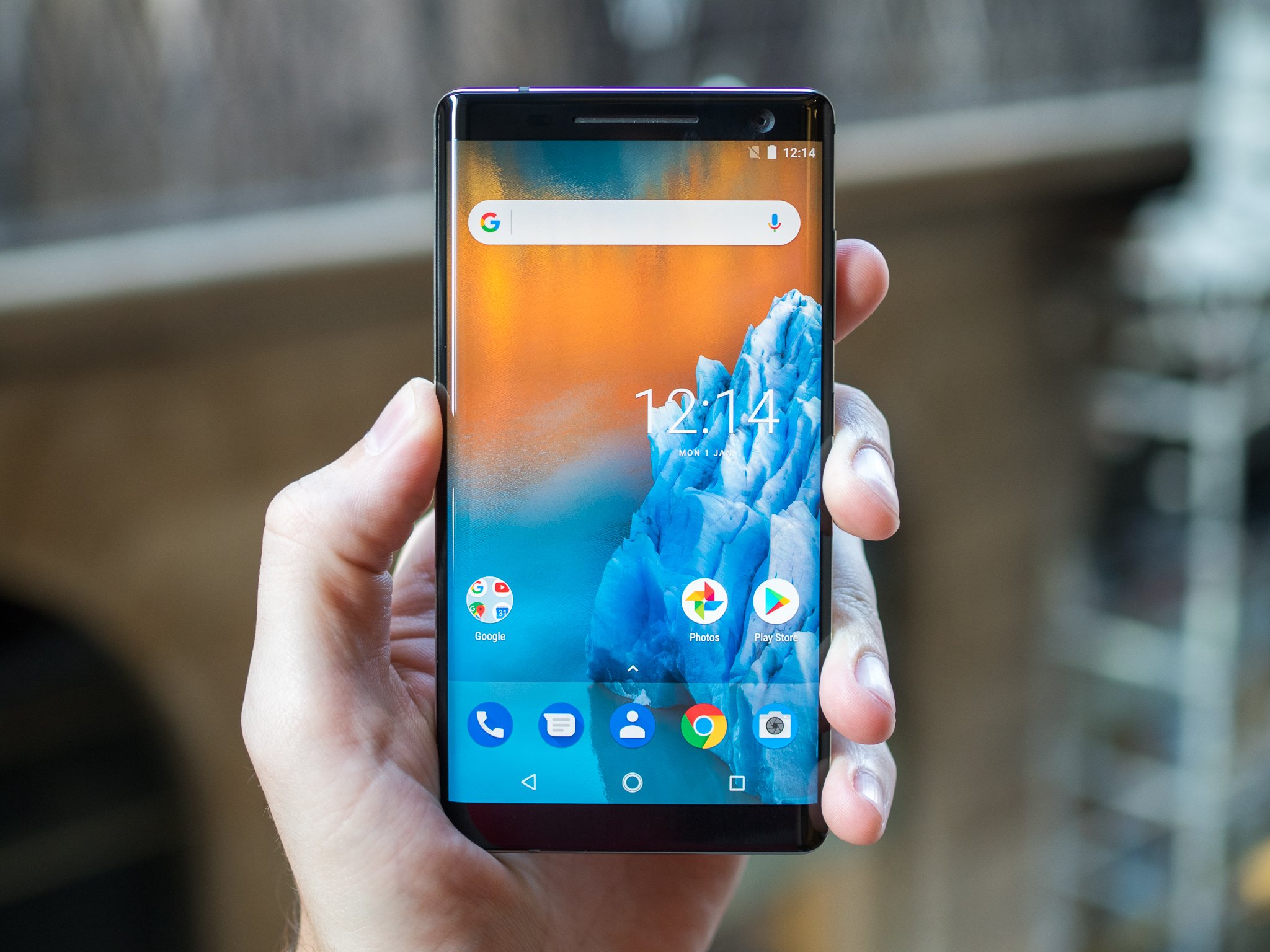
Nokia 8 Sirocco

The Nokia 8 Sirocco is the company's most premium device yet on Android. With a dual-curved screen and a chassis milled out of a single block of stainless steel, the phone has an exquisite design that's backed by high-end internals.

Up front there's a 5.5-inch QHD P-OLED panel, and the minimal bezels around the border facilitate one-handed usage. The phone offers IP67 dust and water resistance, and both the front and back glass panels are protected by Gorilla Glass 5.

Round the back, the primary 12MP f/1.7 module is joined by a 13MP telephoto sensor that offers 2x optical zoom. There's a 5MP front camera, and the phone has three microphones that record multi-dimensional audio.

The Snapdragon 835 chipset may not be the fastest anymore, but it is still just as capable and works incredibly well with the lightweight Android One interface. There's 6GB of RAM and 128GB of storage as standard, and you get Wi-Fi ac, Bluetooth 5.0, USB-C 3.1, NFC, and a 3260mAh battery that comes with fast charging and Qi wireless charging.

The phone debuted for around $800 earlier in the year, but it is now available for £349 ($440), making it a fantastic deal. The only downside is that it isn't available in the U.S.

See at Amazon UK

Sabtu, 01 Desember 2018

We've got the best PSVR games for you!

It doesn't matter if you're into shooting, flying, music, adventure, or silly games that involve putting bacon in a blender, there really is something for everyone to enjoy on the PlayStation VR. While that's wonderful to know, it does make it hard to figure out which games you should go for first. Here at Android Central, we've played through all of them and have some spectacular suggestions for you. If you're starting a PlayStation VR collection, make sure these games are on your list!

Open world wonderment

Skyrim VR

Most of us have already become the Dragonborn we were destined to become, but the open world of Skyrim is so much better to experience in VR. You can access two different types of locomotion to ensure that you don't suffer from motion sickness, and the ability to dual wield spells has also been added. Fus Ro Dah, friends!

$56 at Amazon

First-person shooter

Apex Construct

Take a journey through a crumbled society with Apex Construct. The war between Mother and Father — sentient robots that now hold control over the Earth — is just as interesting as it is mysterious. Battle waves of robots while you unlock the secrets of what really happened to society when it fell, and which side you truly want to be on!

$23 at Amazon

Puzzles and cuteness

Moss

Solve puzzles in order to get your new mouse friend Quill to her uncle before it's all too late. Make sure to protect her from any enemies that might come her way. Moss plays like a fairytale full of wonder, with stunning visuals and an absolutely captivating story.

$30 at Amazon

Space adventures

Eve: Valkyrie

If you're a fan of flying through space and shooting things, either by yourself or with others, you need Eve: Valkyrie in your life. CCP Games puts you in the cockpit of some incredible interplanetary fighters so you and your friends can really jump in and feel the action.

$20 at Amazon

Scary good

Resident Evil 7: Biohazard

Get back to your love of horror and zombies to see if you can survive the apocalypse. It wouldn't be a Resident Evil game without puzzles and secrets, and this incarnation will not disappoint. You'll give your family hours of entertainment as you physically jump away from the virtual threats!

$30 at Amazon

Save the world

DOOM VFR

Head back into the Hell dimension we know as DOOM. Take on familiar demons and make your way through the UAC space station to save it from the infestation before it falls apart! As the last known hope for humankind on Mars, it's up to you to get the job done.

$26 at Amazon

Mission ready

Farpoint

Search a desolate planet light years away from everything familiar for the pair of scientists you were tasked with returning to Earth. In between you and your goals are a lot of arachnids who want you dead. Use your rifle, shotgun, and more to blast your way through them and find out where those scientists have gotten off to.

$20 at Amazon

Psychological horror

The Inpatient

The Inpatient takes you into the Sanatorium where you have to figure out who you truly are. It's time for you to discover why you ended up here even though you lost all memories of your past life. Will you remember who you are in time to escape? Try out the game for yourself and see if you can survive!

$14 at Amazon

Fan favorite

Star Trek: Bridge Crew

Bridge Crew is the closest thing to a Holodeck simulation of a starship that we're likely to see any time soon, and it is extremely well done. Either play alone or with a crew of your closest friends aboard the Bridge of the USS Aegis as you explore uncharted territory. Ty not to get blown out of the sky by Klingons!

$35 at Amazon

Zombie simulator

Killing Floor Incursion

This sci-fi horror is bound to get your heart racing. In your attempts to survive this zombie-infested world, you have the options of fighting with guns, axes, knives, and even the severed limbs of the zombies you kill. Get the adrenaline rush you've been looking for with these downright terrifying fight experiences.

$30 at PlayStation Store

Jedi beats

Beat Saber

Beat Saber is one of the best ways to get super active in VR, and is one of the most addictive virtual games around. The object of the game is to slice and dice the blocks that are flying at you to the beat of the music playing. Do a little dance while you're at it, and see if you can beat your friends' scores!

$30 at PlayStation Store

Multiplayer fun

Rec Room

You can join friends or make some new ones in Rec Room. There's plenty of online fun to be had with spectacular mini-games like Laser Tag, Ping Pong, and even a first-person shooter that resembles Fortnite! If you get bored with one activity, there is always another game — and another opponent — waiting for you.

FREE at PlayStation Store

There is something for everyone when it comes to the PlayStation VR, but when it comes to fan favorites, Skyrim will always be my top pick. The seemingly endless quests and open world experience will give you hours of gameplay without you ever getting bored. Regardless of whatever game you decide to play from this list, I know you'll have an amazing time.

Make your phone awesome with Chroma on the Razer Phone 2!

One of the coolest new features included on the Razer Phone 2 is the ability to customize the colorful Chroma Razer logo prominently located on the back of the device. You're able to illuminate the logo with practically any RGB color you want, and it's a great party trick to show off to your family and friends that takes very little effort to set up.

Products used in this guide

How to customize the Chroma effects on the Razer Phone 2

All of your Chroma controls are available in the pre-installed Chroma app, which should appear on the Razer Phone 2's home screen by default

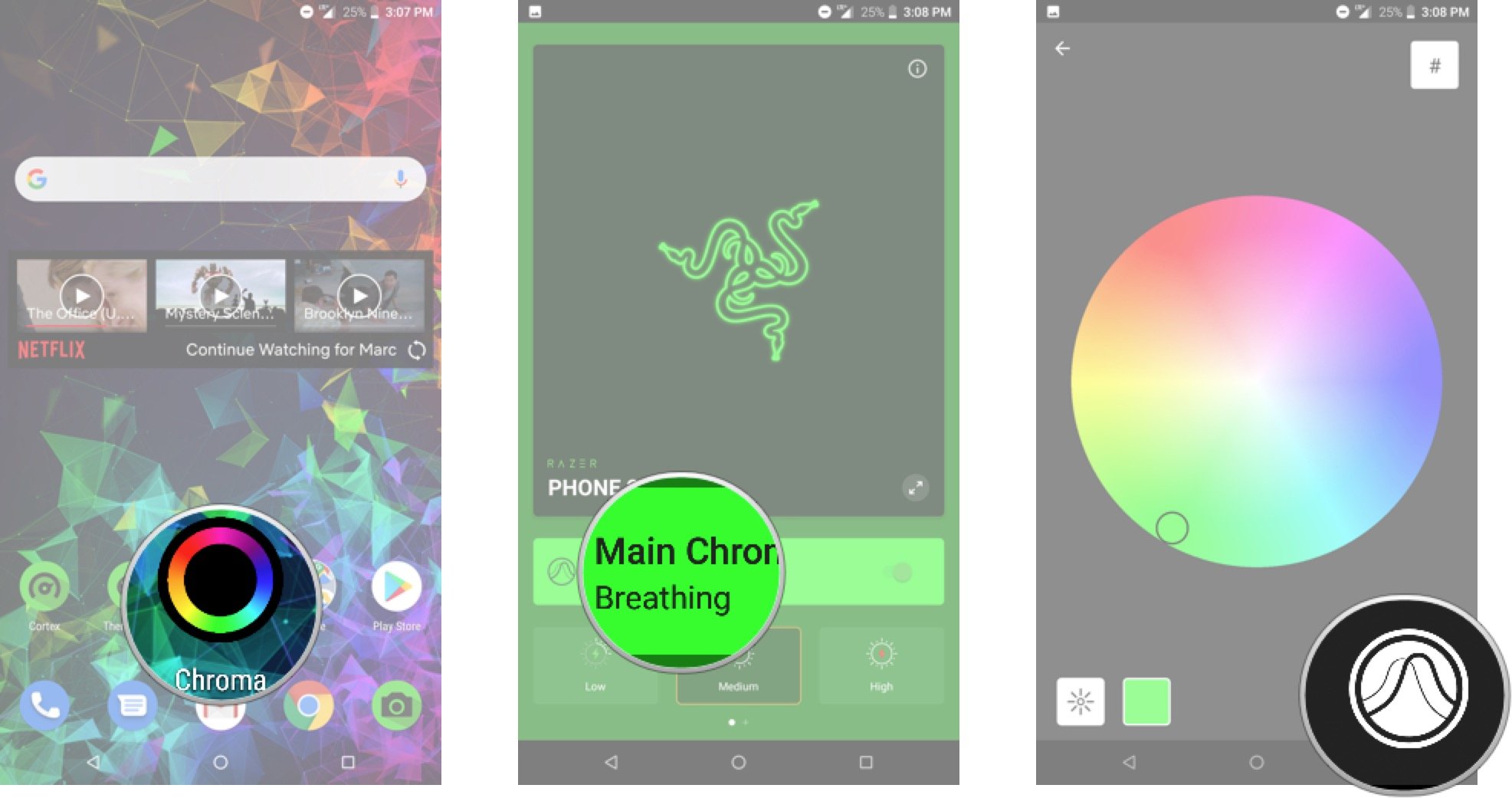
  1. Launch the Chroma app.
  2. Tap Main Chroma Effect to see your customizing options.
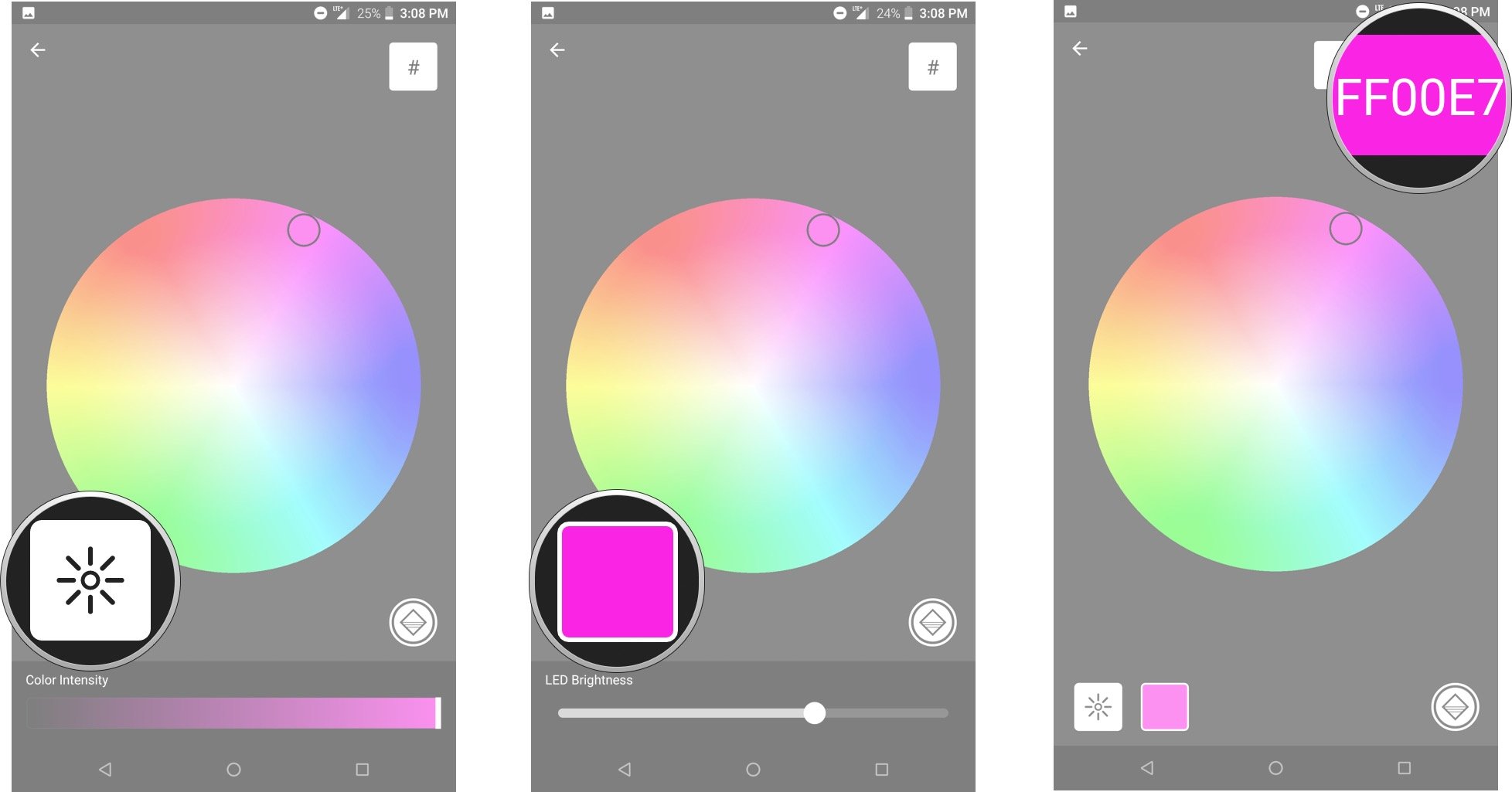
  3. You will see the color wheel along with some icons at the bottom. To change the effect, tap the Effect icon in the bottom right corner. It looks like two waveforms slightly out of sync.

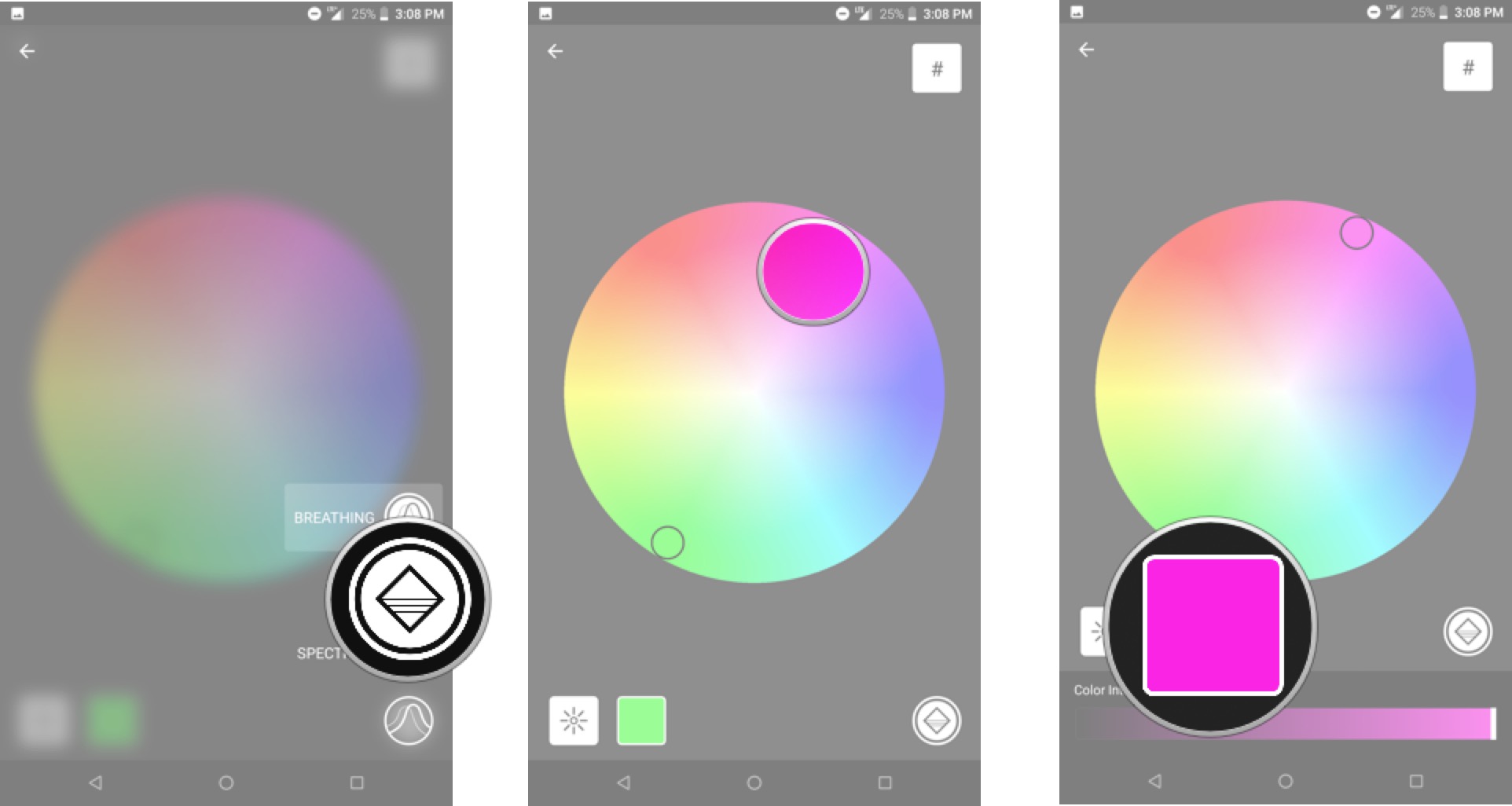
  4. Tap your desired effect. Your choices are:
    • Breathing lets the color glow in waves
    • Static which keeps the logo glowing steady
    • Spectrum which cycles through the RGB rainbow at a static glow.
  5. Tap anywhere on the color wheel to select a custom color. One tip for preserving battery is to stick with pure shades of red, green, or blue.
  6. You'll see the selected color in the Color Intensity box below the color wheel.

  7. You're able to change the color intensity with the slider at the bottom.
  8. Alternatively, you can tap LED Brightness to switch the slider to control the intensity of the light. This is a very important setting if you always want that Chroma glow on but still care about battery life.
  9. Another neat feature is the ability to enter a hex color code for a precise color match by tapping the hex symbol icon in the top right corner.

Control brightness to save battery life

Beyond the controls for the Chroma effect, Razer gives you three quick settings for controlling the overall brightness.

  • High definitely looks the best, even in direct sunlight, but will noticeably reduce your battery life if on for a whole day.
  • Medium is slightly dimmer and, therefore, better for everyday use if you still need a day's worth of battery life.
  • Low is best if you'd rather not waste battery on the Chroma when you're using your phone. It minimizes the effect, but you can still fire up Chroma for app notifications.

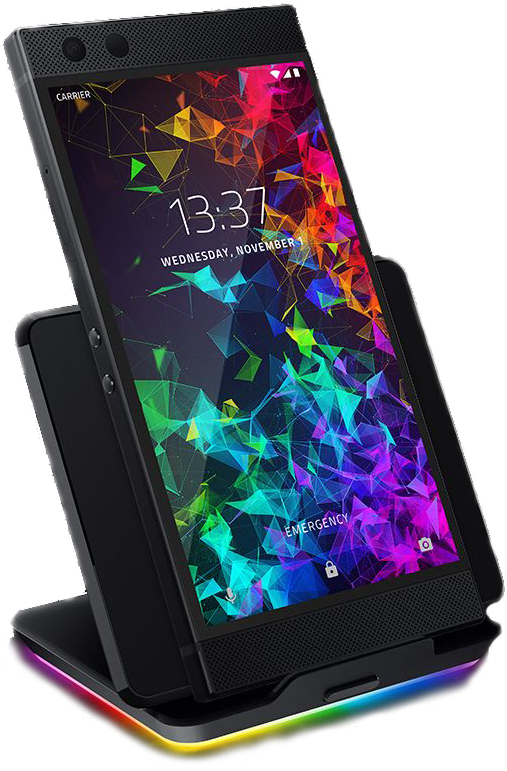
If you really want to take things to the next level, you can also get the official Razer Phone 2 Wireless Charger which sports a ring of Chroma LEDs around the base of the charging pad. You pair the charger and customize the Chroma effects to match that of your phone using the same Chroma app used above!

Why, yes, it is total overkill, but isn't that the point?

Our top equipment picks

Razer is bringing RGB to Android in a big way, with its Razer Phone 2 and accessories.

RGB is beautiful

Razer Phone 2

$800 at Amazon

A refined gaming phone for a refined gamer.

The Razer Phone 2 is an impressive smartphone that's designed with gamers in mind. It's got the latest Snapdragon 845 processor, 8GB of RAM, a massive 4000 mAh battery and a screen that will make you weep at the loveliness of its 120 Hz refresh rate.

Razer has added its own software touches to this mostly stock version of Android 8.1 Oreo, including great performance tweaking for mobile games and full control over the Chroma RGB logo on the back. This is a good follow up from one of the newer tech companies to get into the smartphone business, and it's worth serious consideration for your next phone.

Additional Equipment

The Razer Phone 2's Chroma effects are good fun in their own right, but if you're also in the market for a wireless charger, you should consider this one from Razer. It's a bit more expensive than other third-party wireless charging accessories, but you'll appreciate how it's designed to work specifically with the orientation of the wireless charging coils on the Razer Phone 2. Plus, you can put on a Chroma light show with the RGB LEDs that encircle the charger's base, synchronized with your glorious gaming phone.

Razer Phone 2 Wireless Charger

$100 at Razer

Razer's charger looks great and is specifically designed to match up with the Razer Phone 2's wireless charging coils. Get more Chroma in your life!

The Elder Scrolls: Blades pushed back to 2019

The Elder Scrolls: Blades has been delayed again.

The Elder Scrolls is a legendary franchise and games like The Elder Scrolls Online and The Elder Scrolls V: Skyrim are regarded as some of the best role-playing experiences on the market. The freedom and expansiveness these titles offers is second to none. Bethesda is always looking to introduce new players to the franchise, and The Elder Scrolls: Blades is the studio's latest venture in the mobile space.

The Elder Scrolls: Blades was supposed to launch in September 2018, but was suddenly pushed back to December 2018. Unfortunately, the game has suffered another delay and now won't launch until early 2019. This information was first revealed on Apple's App Store where many users noticed that the new release date was March 31, 2019. A few hours later, Bethesda confirmed that "The Elder Scrolls: Blades will release in early 2019 for iOS and Android devices" on its Twitter channel.

If you're interested, you can "preorder" the game for Android and iOS right now. Luckily, it's a free-to-play experience with microtransactions, so you don't have to pay at the moment. It's unclear what type of content will be attainable through actual currency, but hopefully it'll be limited to cosmetic items.

In The Elder Scrolls: Blades, the empire's top agents are forced into exile. On the run, you return to your hometown to find it completely destroyed. From there, you embark on quests to become your city's champion through single-player storylines. Apart from that, you have to rebuild your hometown and restore it to its former glory. Lastly, you can participate in player vs. player matches against your friends and rivals.

See on Android

Chrome OS is good. Here's how Google can make it great

Chrome may be Google's best product yet, but it still needs some polishing.

I usually take a few minutes each week to talk about Android on Saturday mornings, but this week I'm going to talk about Chrome OS. It seems fitting with the recent release of the Pixel Slate and how (and why) some people can love it while others can't. Let's talk about Chrome and its oddities, its peculiarities, and its bugs.

If you find someone who uses a Chromebook all day every day, there's a good chance they seem immune to its flaws. That happens when you have to find ways of getting around the things that seem broken at first, and eventually, you just forget that they felt that way because you've become accustomed to doing things "differently". It's not just a Chrome issue; people using Android, iOS, and Windows all do the same thing and might not even realize it. We all get comfortable with the software quirks we see every day and almost forget they are there. Sort of like tech Stockholm Syndrome.

Bugs are there even if we get used to them and forget.

But that doesn't mean the company making the software can rest on its laurels and forget about them. I think that Google needs to stop adding features to Chrome and put the final polish on what's there now if it wants someone who doesn't already use a Chromebook to have a great experience when they pick one up.

The Pixel Slate really shows this. I think it's a pretty good product (better than I expected, to be frank) and its biggest flaw is the price tag. Others who had an early look didn't feel the same way. Android Central Managing Editor Daniel Bader received his the same day that I did, and he basically thinks it wasn't ready to be released and isn't having a great time with it. The Verge's Dieter Bohn came away with a similar impression in his review. Daniel and Dieter both know their way around tech — it's not just their livelihood, they both have a real passion for these things that go beep. The difference is that the Pixel Slate is a good Chromebook, err, Chrome tablet, and has the same flaws as the rest.

There are three areas that Google needs to dig in and spruce up: memory swapping, the touch interface, and how Android apps look and feel on the bigger screen. I think if these issues aren't addressed, new features no longer matter because users aren't going to be attracted to Chrome OS with the problems it has today, no matter how many cool new things it adds.

Stop and go

If you use a Chromebook every day you know that sometimes, seemingly for no reason but especially with a browser window running, everything just suddenly stops for a second. It happens on a Chromebook with 2GB of memory and on a Chromebook with 16GB of memory, it just happens more frequently when you have less RAM. I'm sure that someone knows the exact technical reason for this, but it seems like the OS has to stop doing everything when it has to finally flush away information it has stored in memory.

I have my guesses about why this happens (I think it has to do with zRAM/zSwap which Chrome uses by default and suspending backgrounded browser windows) but that doesn't matter. What matters is that it's happening in the first place and users either need to deal with it or decide that a Chromebook isn't for them because of it. Android does the very same thing, but a lot of work was done to minimize how often it does it and to hide the fact that it's doing it. RAM is there to be used, and even if you only use the Chrome browser on Windows or MacOS, you know that Chrome loves to use it. It just needs to use it a little more efficiently I think.

What you can do

There are some things you can do to keep the stop and go effect from happening very often on your Chromebook. When you aren't using the browser, close it instead of minimizing it. It opens fast and will go right back to where you left off. If you are switching back and forth between browser tabs or the browser and other apps, try closing tabs you aren't using. If you're using a lower spec model, try setting YouTube to 720p. You won't notice much of a difference unless you have a high-resolution display.

Chrome does this thing from time to time and just...stops.

Before you jump into Google Play and install an Android app, check and see if whatever you're looking for works well in the browser. Facebook, Twitter, YouTube, and Netflix are prime examples here. The websites have been optimized to use the Chrome browser if they recognize you're running it and this can make the website better than an app. A properly built website can offer things like notifications or let you use the microphone for voice chats and do everything else the Android app can do. Maybe even more: Netflix streams are noticeably better when it sees you're on a desktop window and not using a phone app.

Mind your extensions. Chrome extensions are awesome, but each and every one is sandboxed and uses its own bit of memory and processor time. Having one that gets sluggish can wreck everything, and so can having too many running at once. Take a look at what extensions you have running by opening chrome://extensions/ in a browser window and cull any you don't really need.

it doesn't matter how much memory your Chromebook has; eventually, it will stutter. You don't need to do anything and it doesn't take long to recover but you can cut back on the frequency with a bit of housekeeping. It would be so much better if it didn't happen in the first place, though.

Going all-in with touch

Using the first Google Chromebook Pixel was a nightmare when it came to the touch-friendliness. Chrome has come a long way, but there's still plenty of work to be done. Even the Pixel Slate has some strangely specific weirdness when using your finger instead of the mouse. For the easy example: If you are using it as a tablet and open the application drawer, try swiping between screens of apps with your finger. Then pretend your finger is a mouse pointer and tap the circular buttons on the left of the window to switch screens. Then facepalm because it's so bad.

Chrome's onscreen keyboard is great. Let's get the rest of it there, too.

You'll find similar issues throughout the interface. Long-pressing as a substitution for a right click can be frustrating, touch targets of some vital navigation elements like scroll bars are too small, and text selection is as bad as it was on Android three years ago. I'm not trying to bash Google or Chrome and still think a Chromebook is the best computer for almost everyone. But there are plenty of areas that need attention before it can be called touch friendly. Thankfully, the new onscreen keyboard works great and the home screen, tray, and application icons are well done when it comes to tapping instead of clicking.

Google knows how to fix this. They fixed it for Android, so they can fix it for Chrome. It wasn't too long ago that your phone had a glitchy keyboard and it felt like you had to tap multiple times to get anything done. Android, like Chrome, was originally designed for a device with a physical keyboard and trackpad like an old-time BlackBerry.

Got a Pen?

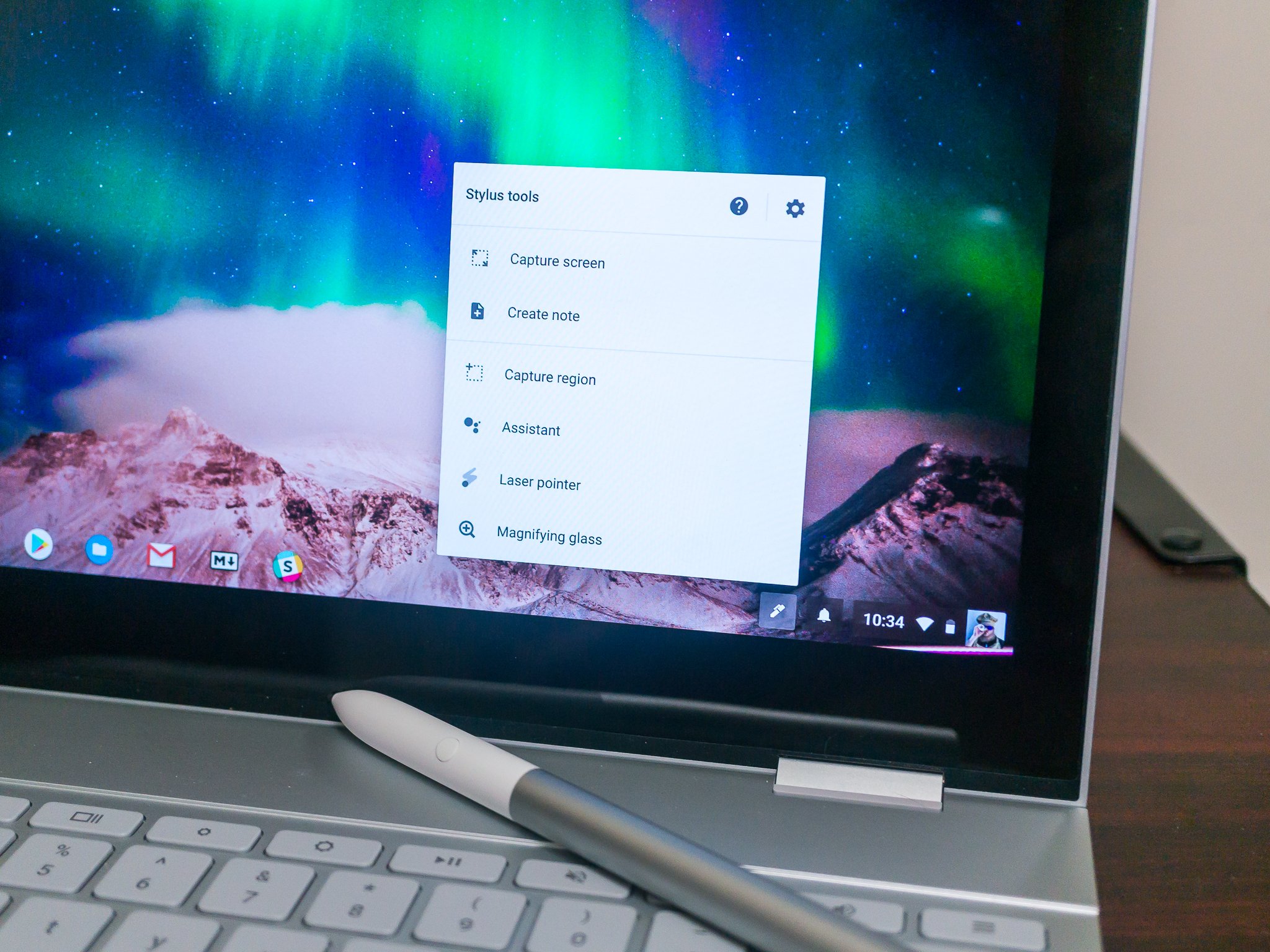
There's not a lot you can do yourself to make your Chromebook more touch-friendly, but you can use a stylus for more precise control. Many Chromebooks include a Chrome-optimized Pen, and you'll find that the interface really does work well and the "optimized" moniker isn't just there for kicks.

If your Chromebook isn't set up for Pen input, a regular stylus like this one will work on the touch screen. It will also work on your phone, and any other capacitive touch display. Don't try to use a Galaxy Note S Pen, Pixelbook Pen, or Apple Pencil, though. They won't work as they're designed for a particular type of display digitizer.

If Google keeps working on the touch interface at the same pace it has in the past six months, these issues should soon be a thing of the past. Fingers crossed.

Android apps

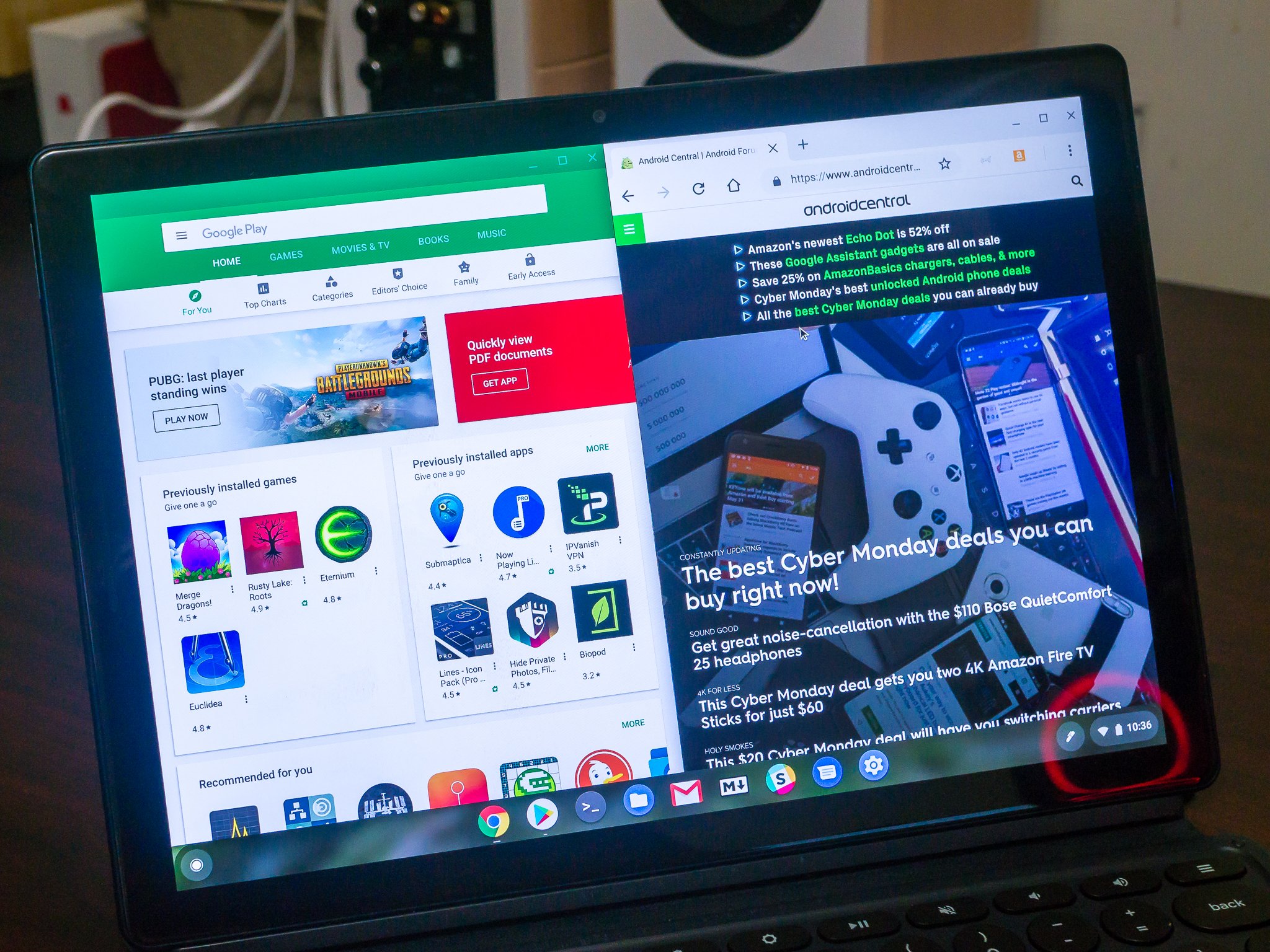
Most Android apps work on a Chromebook. Most Android apps also suck on a Chromebook because they were built for a much smaller phone screen.

Google is trying to tackle this problem by working on how the window that an app runs inside of is built. Ideally, you would be able to change the size of a window so that the app can use the space provided to run well and look good, but that's rarely the case when it comes to Android apps. That's because of the way they were coded.

Android on Chrome is proof that "if you build it, they will come" is a load of garbage.

Android apps are all infinitely scalable and the window can be as big as it needs to be. That doesn't mean the content inside the window will react to the size, though. Some apps do a great job here: Evernote, Pocket Casts, Microsoft's Office suite, and of course all most of Google's own apps come to mind. They change the way the information is displayed once the window reaches a bigger size and everything works well and looks good. Unfortunately, the majority of apps in Google Play don't and you'll see a ton of empty space with all the information smooshed over to one side.

The application's developers will need to fix this and there's not a lot Google can do about that right now. There are newer and much better tools for developers to build apps that scale for both small and large displays, but unless a developer wants to rebuild their app using them that isn't going to fix anything. this will be a tough nut to crack.

The Right App

Unless you're an application developer and your favorite app is open source, you can't do much about this. If Google can't fix how apps get displayed on a Chromebook, chances are the users can't either.

it's 2018 and Android on tablets is still bad.

The best thing you and I can do is make sure that developers know we want to use their apps on our Chromebook (be polite!) or to find an alternative that does what we want. If you do find a new app that fits your needs, be sure to tell the developer you appreciate it. Provide feedback in the form of a review and tell anyone else who might be looking about it. If developers can see that there is a market, they will be incentivized to fill it.

Android exists on more than just phones, and if Google wants to get anyone to decide they should buy a Chromebook, Android tablet, or even an Android television this has to be addressed. I'm not sure how to fix it, but I'm going to imagine that Google has some ideas.


No software is perfect and each program, whether it be an app or an operating system, has its own unique bugs and flaws. Google did an amazing job "fixing" Android's early days and bringing a level of polish that nobody expected to see just a few years ago. It also had a lot of help from companies who use Android in their own products, like Samsung, HTC, LG, and the rest. Chrome is different and Google will need to do most of the work themselves if they want to tighten up Chrome's bugs before the next new feature brings along even more.

I really think Google is up to the task here. The company can build things that are both functional and beautiful, and Chromebooks (and tablets!) are almost there. I hope 2019 is when we see the last bits and pieces all come together.

Best Small Android Phone of 2018

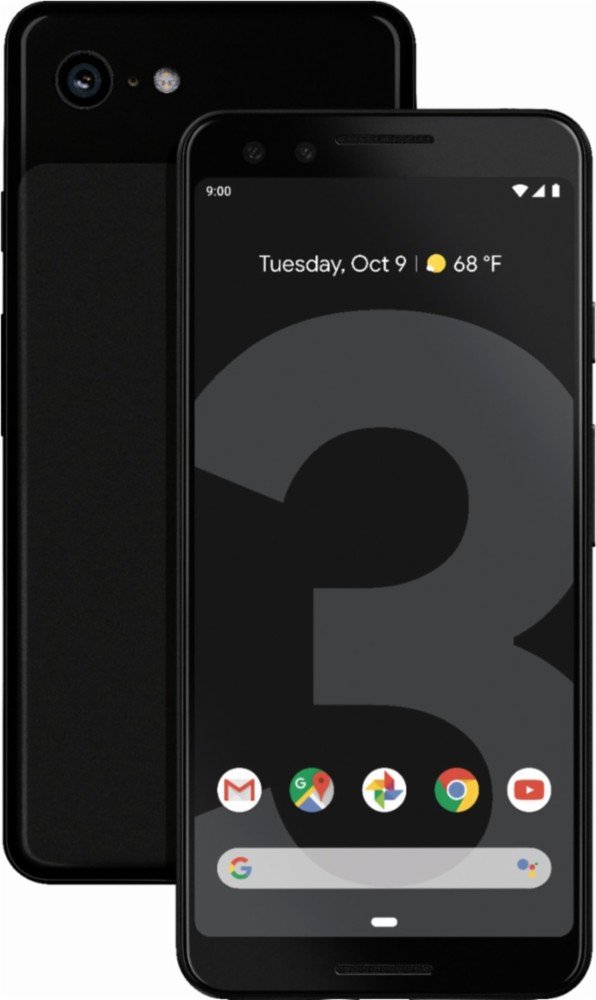
The definition of a small phone has changed over the course of the last 18 months as the smartphone industry has moved to taller displays. One way manufacturers have kept phone sizes small is by trimming the bezels, and that's the direction Google took with the Pixel 3. The phone retains the same size as its predecessor while offering a larger 5.5-inch display, making it ideal for one-handed use.

Our pick

Google Pixel 3

Google has done a stellar job retaining the same form factor as the Pixel 2 while introducing a larger 5.5-inch screen. The Pixel 3 doesn't miss out on any features from its larger sibling — it has dual front cameras, and it also retains the stereo speakers. If you're in the market for a small phone with excellent cameras, the Pixel 3 should be your go-to option.

$799 at Google Store

Feature-packed

Samsung Galaxy S9

The Galaxy S9 is marginally taller than the Pixel 3 at 147.7mm, but it also has a larger 5.8-inch display. The panel itself is one of the best you'll find on a phone today, and the Galaxy S9 is certainly not lacking when it comes to features. It misses out on the S9+'s dual rear cameras, but the primary shooter is still great and the rest of the features are intact.

$624 at Amazon

Mid-range marvel

Honor 10

The Honor 10 stretches the definition of a small phone as it comes in just shy of 150mm, but its narrow form factor makes it great to use one-handed. The design at the back is evocative, the phone offers excellent value for money, and the 3400mAh battery is more than adequate for all-day usage.

£279 at Amazon UK

Excellent for one-handed use

Sony Xperia XZ2 Compact

As the name suggests, the Xperia XZ2 Compact is ideal for one-handed use. The phone is diminutive at 135mm, and Sony didn't compromise on the features. You get a Full HD panel, Snapdragon 845, 4GB RAM, 64GB storage, and a 19MP camera along with a 2870mAh battery. If you need a high-end phone that's primarily designed for one-handed use, the Xperia XZ2 Compact is an excellent choice.

$499 at Amazon

Exquisite design

Nokia 8 Sirocco

The Nokia 8 Sirocco flew under the radar, but the phone ticks all the right boxes. It is shorter than a Pixel 3 at 141mm, and has a 5.5-inch dual-curved QHD display along with the Snapdragon 835, dual 12MP + 13MP cameras, and a 3260mAh battery. The camera may not be quite as good as the Pixel 3 or the S9, but its design and Android One underpinnings make it a great choice.

£349 at Amazon UK

The entry-level option

Xiaomi Redmi 6

Like all other Xiaomi phones, the Redmi 6 delivers a laundry list of features while retaining a low price tag. The switch to MediaTek's Helio P22 has resulted in better performance, and the phone also offers a newer 12MP imaging sensor. The 5.45-inch 720p display is one of the best you'll find on a budget phone, and the 3000mAh battery ensures the device lasts all day on a full charge.

£109 at Amazon UK

The market for small phones is dwindling, but there are a few solid options still available. The Pixel 3 in particular stands out because of its form factor and the excellent camera on offer. The phone is great for one-handed use and not only does it not miss out on any features from the pixel 3 XL; but it also doesn't have a notch. The IP68 water resistance, wireless charging, and the ton of useful additions like Now Playing and call screening make the Pixel 3 the best small Android phone you can buy in 2018.

Lenovo Smart Display UK review: The premium smart home hub

Lenovo's smart home device is a worthy upgrade over the Google Home Hub.

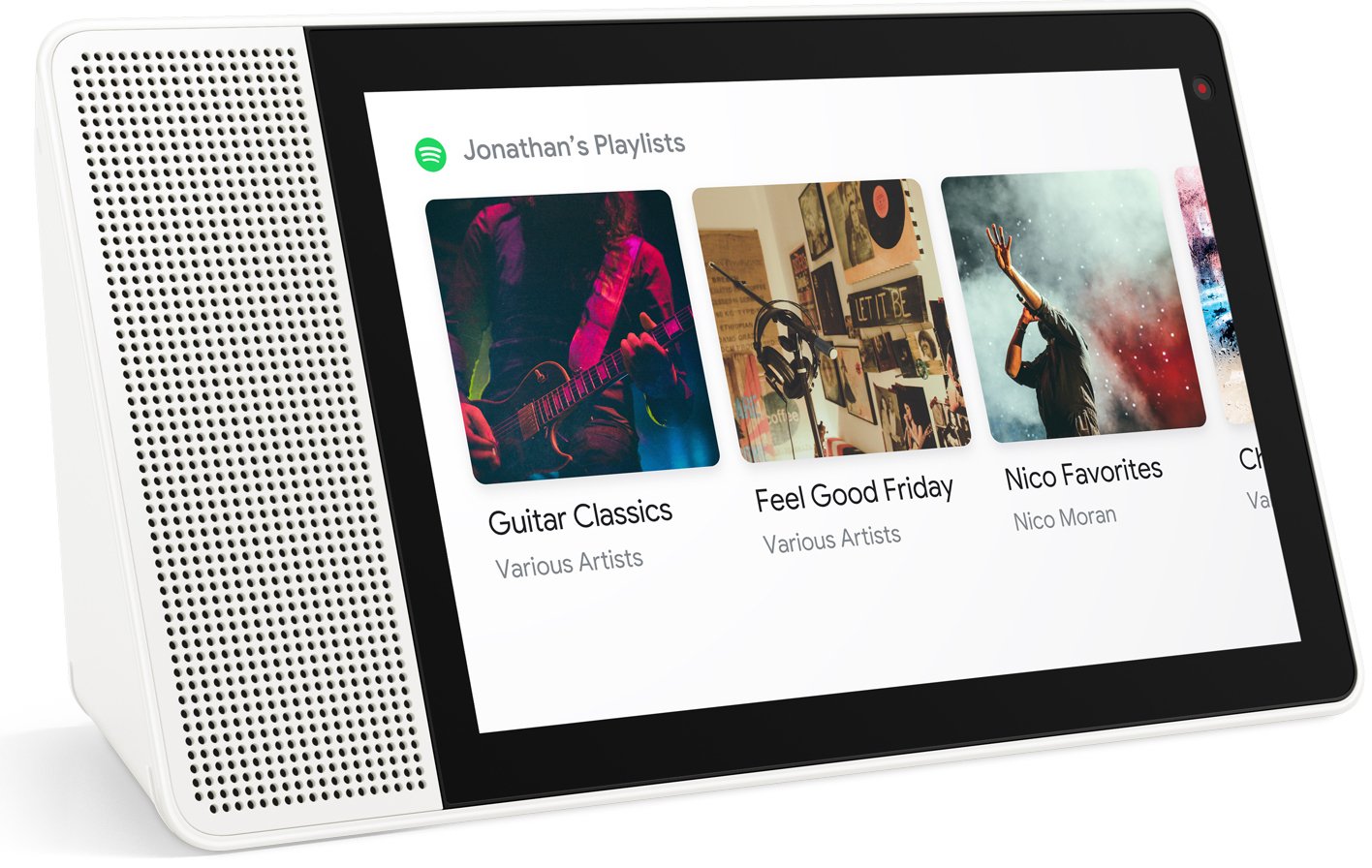
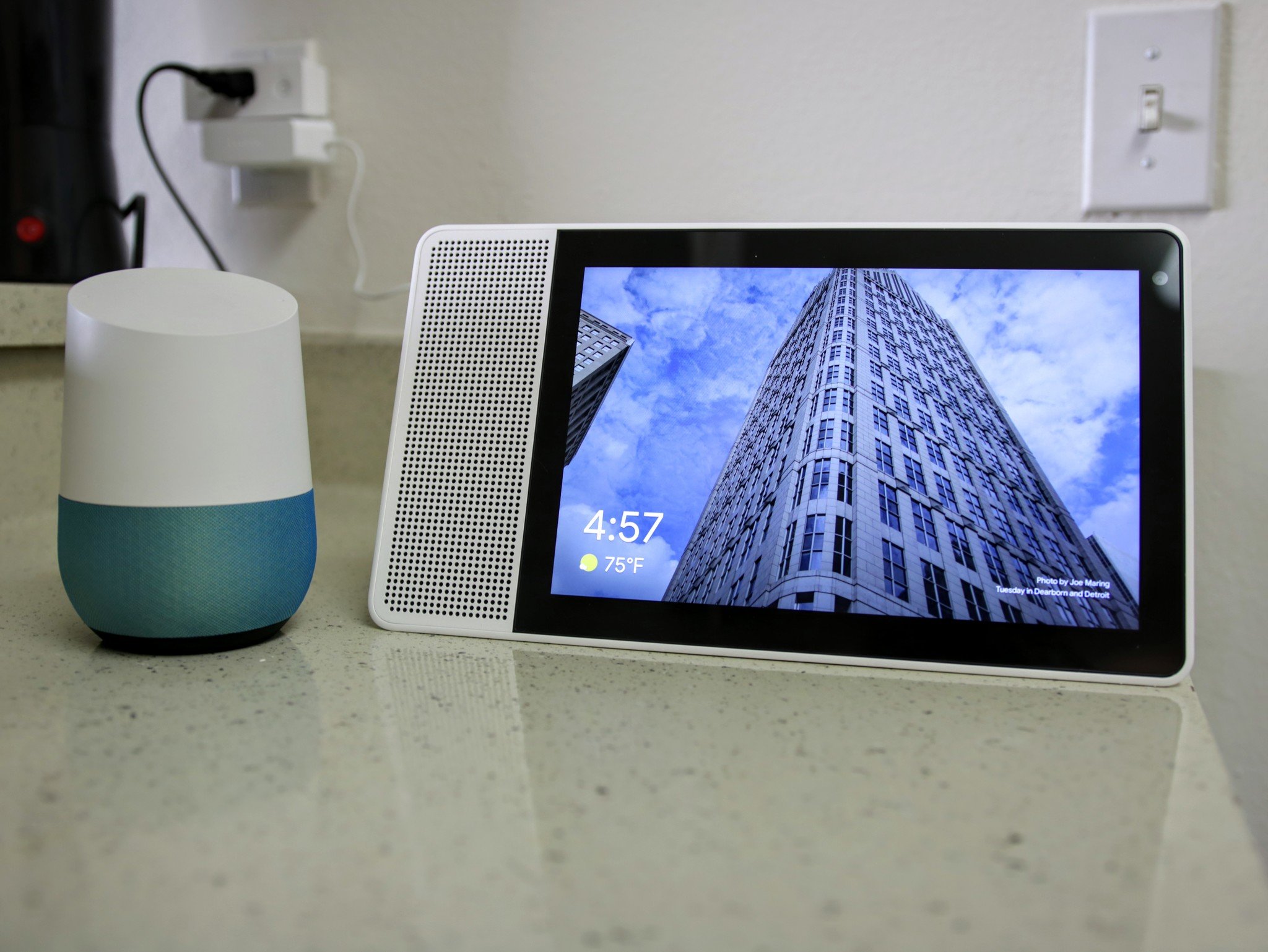
The Lenovo Smart Display is among the first in a new class of device that wants to sit at the heart of your digital home, tying together a wealth of functionality through the Google Assistant. Like the Google Home Hub, it's a natural evolution of early Assistant-enabled gadgets like the original Google Home. But unlike Google's cheaper, own-branded offering, you get an expanded feature set, a larger display, and a superior audio experience.

It's part tablet, part smart TV, part digital photo frame, part video-calling box, and a whole lot of fun to have around -- even if, like me, you end up not using it to anywhere near its full potential.

The premium smart home hub

Lenovo Smart Display

£199 at Lenovo

Pricier than the competition, but worth it.

For those dipping their toe into the smart home waters, Google's Home Hub offers much of the same feature set a much lower upfront cost. But if you're already onboard with the concept, a little extra cash will get you a better screen, beefier speakers and a more elegant design.

Pros:

  • Great audiovisual experience
  • Attractive design that works in any room
  • Intelligent Assistant features
  • Quick, simple setup
  • Genius camera slider

Cons:

  • Not all services supported for cast
  • May be too bulky for some areas
  • More expensive than rivals

The 10-inch Smart Display I've been using is a pretty weighty piece of kit, with a wedge-shaped design, a neutral-looking front, and an attractive bamboo-clad rear. (There's also an 8-inch model with a plastic back.) It's inoffensive in the same way as the full-sized Google Home, and unlikely to upset the look of either your kitchen counter, dressing table or coffee table. In theory, both Smart Display models can be used in either portrait or landscape orientation, but software support for portrait mode is limited to just a few features at present.

This is a very non-mobile device, however. There's no battery included -- the Smart Display's always-on characteristics necessitate an always-on power supply. That means keeping it anywhere more than a few feet away from a power outlet is out of the question.

Setup is handled through the Google Home app on your phone, which connects to the Smart Display and handles Wi-Fi configuration and pairing of Google accounts. Despite having to pull down a couple of software updates right after setup, my Smart Display was up and running in a little over 30 minutes. From there, the Google Home app continues to serve as a remote control for your Smart Display.

The Smart Display is a product for those of us who are fully submerged in the Google ecosystem. Like most of Google's own hardware, you'll get the most out of this device the more of Google's features you use in everyday life. Assistant "routines" for certain times of day let you quickly get up to speed with the news and appointments in the morning, or dim the lights and unwind with your favorite music in the evening. In between, it can tap into your favorite shots in Google Photos, essentially turning it into a super-advanced digital photo frame. And, of course, Google Assistant is always listening for your commands -- until you flip the switch to tell it not to.

In order for all those features to be worthwhile, then, you obviously need to be all-in on Google.

Besides your Google stuff, the Home Hub also supports an exhaustive list of smart home products. I've used it with Philips Hue bulbs and little else. But if your home is fully kitted-out with connected tech, you'll surely appreciate having one central physical device for controlling all that stuff -- particularly one with a large display.

To get the most out of the Smart Display, you need to be all-in on the Google ecosystem.

That display itself is a 10-inch 1920x1080 LCD touchscreen with ample brightness, appealing colors and good viewing angles. It's not going to replace your TV for extended movie marathons, but it's good enough for the occasional BBC iPlayer binge or YouTube session. The same applies to the large loudspeaker the accompanies the display. It's fine. About as good as the original Google Home, with equal volume and perhaps with a little less bass. Similarly, it's fine for enjoying a podcast while you cook, but it's not going to replace a fully-fledged sound system, or even a more audio-centric smart speaker like the Google Home Max.

Perhaps the smartest feature of the Smart Display is its camera -- specifically the tiny switch letting you physically block the lens when you're not using it. The main feature here is peace of mind -- Google and Lenovo know that people are rightly uncomfortable with a (potentially) all-seeing eye in their homes, and so the switch is an easy way to allay those fears. When you do want to use it, though, the built-in cam works great with Google Duo in portrait mode. (That is, assuming you know anyone who actually uses Google's video calling app.)

Some frustrating service limitations are the biggest problem in day-to-day use.

Since it's not a tablet or a computer, many third-party calling services like Skype are out for now. The experience is built on Google's proprietary Android Things platform, and so unlike Android on a phone or tablet -- or even a Chromebook -- you're not getting a traditional app experience in any of the Smart Display's features. Your home screen is designed to put your information from Assistant front and center as opposed to acting as a portal to your apps. That means the Smart Display has a far narrower feature set than the cheap Android tablet you might use for similar tasks, but it also much better at that specific set of skills.

When it comes to entertainment, though, the Smart Display benefits immensely from Google's Chromecast ecosystem, acting as a Chromecast and display in one. Most streaming services which support Chromecast will simply work -- with one or two odd omissions like Netflix, which may be a deal-breaker for some.

Google Assistant has become adept at interpreting voice commands, and even understanding complex requests with follow-up questions. All of that is at your disposal in the Lenovo Smart Display, but it's augmented by the visual feedback and direct touch input offered by the screen. Sometimes it's just easier -- not to mention more precise -- to see and tap on something you want. And in most of its features, the UI is clean and uncluttered, putting content front and center.

Personally, having the fallback option of touch actually made me more confident in using Assistant's voice features on the Smart Display compared to my Google Home. And when I did, the device's far-field mics were able to pick up my commands even in relatively noisy environments. (It doesn't help with the generally awkward feel of saying "Hey Google," though, even in an empty room.)

I'm a Google person -- I use Google Photos and Assistant and countless other Google services, and in theory, I'm the perfect target customer for the Home Hub. In reality, though, I've found myself mainly using the device as a glorified smart speaker and digital photo frame that occasionally helps me out with Assistant queries. Although it's an enjoyable device to use, I can't help but feel I'm underutilizing it, particularly considering the relatively high price.

Ultimately, you get what you pay for.

At £199, the Lenovo Smart Display is a good deal pricier than Google's base model Home Hub. And it carries many of the same strengths and weaknesses as that less expensive product. Aside from video calling support, which due to the current Google Duo limitations is a bit of a non-starter, the main differentiators are the higher-quality display and speaker, and perhaps the sturdier design.

Plus, as a first-generation product, the Smart Display is limited by the first-generation Home software experience from Google. It's sure to grow more features in future, and missing services are likely to materialize over the next year or so. For the moment, you'll have to make do with Google as your gatekeeper, which means a less full-featured cast experience than you get on your TV or other devices.

4 out of 5

For those dipping their toe into the smart home waters, Google's Home Hub offers much of the same feature set a much lower upfront cost. But if you're already onboard with the concept, a little extra cash will get you a better screen, beefier speakers and a more elegant design. In the smart home, as with life in general, you get what you pay for.

See at Lenovo